Aria Automation: Going from NSX-T Load Balancer to AVI Load Balancer

Hello Everyone!

On today’s post, we’re going to talk about the newly released feature in Aria Automation 8.16.1 which is the native integration with the AVI Load Balancer (also called Advanced Load Balancer, and from now on this post, ALB) by using a NSX-T Load Balancer as an example and starting point.

The goal of this post will be for you to be able to operate with the AVI Load Balancer from Aria Automation in the same way that you can do today with the NSX-T Load Balancer.

Initial Setup

For the initial setup and cloud account configuration, you can follow https://docs.vmware.com/en/VMware-Aria-Automation/8.16/Using-Automation-Assembler/GUID-190DD085-2F1B-4888-A7F1-DAA8D5A8380E.html

On that document, in addition to a list of steps, you will also see what permissions are needed by the Aria Automation user that will be interacting with ALB.

It is important to configure these Cloud Accounts with the same capability tags that the vCenters in the same location (and that will be hosting these resources) have.

While there is a native ‘association’ between NSX-T and vCenter, that concept does not currently exist with ALB. If you plan on having more than one ALB Cloud Account in your Aria Automation instance, and you plan to leverage the allocation helper construct (which we will talk about later) make sure the tagging is in place.

This will create a Cloud Zone in Aria Automation as well. Make sure you are adding this Cloud Zone to the projects you plan to consume (as stated in the documentation above). This will all come into play later.

Assumptions on the ALB side

For the purposes of this blog post, I’m going to take the following assumptions on the ALB configuration side, which need to be in place for the integration to work.

  • There is a NSX-T Cloud Configured with the same vCenter and NSX-T account that you will be using in Aria Automation
  • There is at least one IPAM profile assigned to the NSX-T cloud with at least one usable VIP network profile configured for allocating VIP IPs
    • This VIP network profile name matches the network name in NSX-T
  • There is a Service Engine group correctly configured

Now that everything is set up on the Aria Automation side (and ALB side) let’s move on to our use case!

NSX-T Template

Let’s take a look at the following NSX-T LB YAML Code

LB:
    type: Cloud.NSX.LoadBalancer
    properties:
      routes:
        - protocol: HTTP
          port: 80
          instancePort: 80
          instanceProtocol: HTTP
          algorithm: ROUND_ROBIN
          healthCheckConfiguration:
            healthyThreshold: 2
            unhealthyThreshold: 3
            protocol: HTTP
            intervalSeconds: 15
            urlPath: /
            httpMethod: GET
            port: 80
          persistenceConfig:
            type: COOKIE
            cookieMode: INSERT
            cookieName: CK-${uuid()}
            cookieGarble: true
            maxAge: 3600
            maxIdle: 600
        - protocol: TCP
          port: 1000
          instancePort: 1000
          instanceProtocol: TCP
          algorithm: LEAST_CONNECTION
          healthCheckConfiguration:
            healthyThreshold: 2
            unhealthyThreshold: 3
            protocol: TCP
            intervalSeconds: 15
            port: 1000
          persistenceConfig:
            type: SOURCE_IP
            ipPurge: true
            maxIdle: 60
      network: ${resource.Cloud_NSX_Network_1.id}
      loggingLevel: WARNING
      instances: ${resource.Cloud_vSphere_Machine_1[*].id}

What do we have?

  • Two virtual servers. One with TCP Port 1000, and another one with HTTP Port 80. Load Balancer Algorithm used for each of them is different
  • Each virtual server has it’s own specific health check configuration as well as an application persistence configuration
  • Load Balancer is using an existing NSX network in the deployment
  • Load Balancer is taking the VM instances in the deployment as their pool members. Since VMs have a dynamic count, it is specified in that way in the assignment.

So how do we recreate this using ALB?

ALB Objects

Let’s first take a look at all the ALB objects that are available to use -> From https://docs.vmware.com/en/VMware-Aria-Automation/8.16/Using-Automation-Assembler/GUID-4844BFD9-18A5-4F8D-A53F-059DDE5DB0FF.html
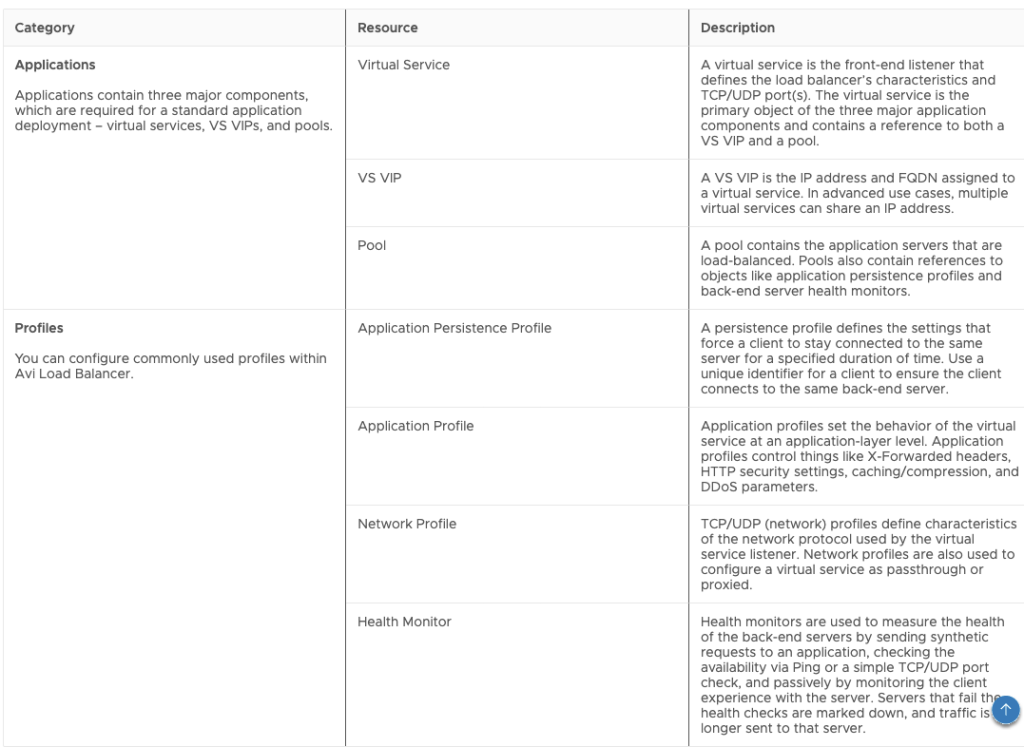
This is how these resources look in the Canvas:

In addition to this, we’re going to need to use the Allocation Helper for the cloud zone, which is also an available resource in the canvas.

Now that we have all of this, what does our NSX-T example translate to, with regards to objects?

We’re going to need:

  • One VS VIP object for IP allocation (either static or dynamic)
  • One Pool object per route
  • One Virtual Service object per route
  • One Monitor object per each individual health check configuration
  • One Application Persistence object per each individual persistence configuration
  • One Cloud Zone Helper object for placement

I know this sounds like a handful, but we will explain how to build each of these objects below. ALB provides much greater flexibility with regards to features, but that comes with the tradeoff of complexity.

It might take us longer to build what looked simpler in NSX-T, but once we’re over that hurdle, the amount of new possibilities is much greater!

Building the ALB Objects

While I’m going to explain each how to build each object here, there is a resource that’s invaluable for building all of this, which is the Swagger documentation of the ALB API.

You can access it by going to https://your_avi_controller_fqdn/swagger/#/

In the swagger documentation, you will be able to see each object’s schema model, as well as examples of creation. You might need to tweak and modify some of it to be able to use it in Aria Automation, but with some trial and error, success is very likely!

I will go about these objects in order by dependency – that means, an object has to be created first (it has to exist), to then be referenced by another object.

Cloud Zone Helper Object

This object will be used to apply constraint tags – In this example, I will match the tags that my VM objects have, so that there is matching with the vCenter – This one is pretty self explanatory, and it will be referenced by other objects

Allocations_CloudZone_1:
    type: Allocations.CloudZone
    properties:
      accountType: avilb
      constraints:
        - tag: site:${input.site}
        - tag: securityzone:${input.securityZone}
        - tag: az:${input.availabilityZone}

VS VIP Object

 VSVIP_1:
    type: Idem.AVILB.APPLICATIONS.VS_VIP
    properties:
      name: VSVIP_${env.deploymentName}
      description: Managed by Aria Automation
      vrf_context_ref: T1-W1-Gateway-DR-01
      tier1_lr: /infra/tier-1s/20f6q214-e8b3-4cb3-aaeb-6c07639ada23
      account: ${resource.Allocations_CloudZone_1.selectedCloudAccount.name}
      vip:
        - vip_id: 0
          auto_allocate_ip: true
          auto_allocate_ip_type: V4_ONLY
          enabled: true
          ipam_network_subnet:
            network_ref: ${resource.Cloud_NSX_Network_1.resourceName}

Object Explanation:

  • VSVIP requires a name – This is the name that you will see in the ALB console – you can set this to whatever name you want, but it makes sense to tie this to the deployment name so that you can identify it
  • description can also be anything
  • vrf_context_ref would be the name of the context ref in your NSX-T Cloud in ALB
  • tier1_lr is the path to the T1 Gateway in your NSX-T instance – this uses the relative path in the NSX-T API as it is not an ALB Object:
    • Note: this might change in future versions and might not be needed
  • account is the ALB cloud account that you’re going to use – here is where you reference the Cloud Zone Helper created before
  • vip is it’s own object, with the following properties
    • Since we’re only using a single VIP, vip_id would be 0
    • auto_allocate_ip is set to true because we want dynamic IP
    • auto_allocate_ip_type is set to V4_ONLY because we’re doing IPV4
    • enabled is set to true because we are enabling this VS VIP as we create it
    • ipam_network_subnet is an object with a network_ref that maps to a VIP network profile in ALB
      • Since this should match to a NSX-T network, we can use the network name in the deployment as an identifier
      • This would be different if you were using a dedicated VIP segment. If that is the case, you can reference a specific VIP network profile name by name instead of using the name of the network resource in the deployment

Monitor Objects

For this deployment, we will have two monitor objects – one for each health check configuration

MONITOR_1:
    type: Idem.AVILB.PROFILES.HEALTH_MONITOR
    properties:
      name: MONITOR_${env.deploymentName}_1
      account: ${resource.Allocations_CloudZone_1.selectedCloudAccount.name}
      monitor_port: '80'
      type: HEALTH_MONITOR_HTTP
      successful_checks: 2
      failed_checks: 3
      send_interval: 15
      http_monitor:      
         http_request: GET /
  MONITOR_2:
    type: Idem.AVILB.PROFILES.HEALTH_MONITOR
    properties:
      name: MONITOR_${env.deploymentName}_2
      account: ${resource.Allocations_CloudZone_1.selectedCloudAccount.name}
      monitor_port: '1000'
      type: HEALTH_MONITOR_TCP
      successful_checks: 2
      failed_checks: 3
      send_interval: 15

Object Explanation:

  • These objects also require names. To maintain consistency, we will be using the deployment name as an identifier
    • Important – Since there will be more than one monitor, we’re using _NUMBER as an identifier as well. Then we can use the same numbering to map this to other objects (like Virtual Services, Pools or Profiles)
    • You can also see that I’m using the same numbering for the objects within the YAML. This helps maintain consistency and makes it easier to understand what maps to what.
  • account follows the same logic as in the VS VIP (and all the objects) – mapped to the Cloud Zone Helper object
  • monitor_port is the port that is being monitored
  • type is the monitor type – in this case, we have a HTTP and a TCP monitor
  • successful_checks, failed_checks and send_interval are self explanatory
  • http_request (which only shows up in the HTTP monitor) would be the method to use, and to what URL, in this case, we’re doing a GET to /

Application Persistence Objects

For this deployment, we will have two Application Persistence objects, one per application persistence configuration

 PERSISTENCE_PROFILE_1:
    type: Idem.AVILB.PROFILES.APPLICATION_PERSISTENCE_PROFILE
    properties:
      name: PERSISTENCE_${env.deploymentName}_1
      account: ${resource.Allocations_CloudZone_1.selectedCloudAccount.name}
      persistence_type: PERSISTENCE_TYPE_CLIENT_IP_ADDRESS
      ip_persistence_profile:
        ip_mask: 0
        ip_persistent_timeout: 60
 PERSISTENCE_PROFILE_2:
    type: Idem.AVILB.PROFILES.APPLICATION_PERSISTENCE_PROFILE
    properties:
      name: PERSISTENCE_${env.deploymentName}_2
      account: ${resource.Allocations_CloudZone_1.selectedCloudAccount.name}
      persistence_type: PERSISTENCE_TYPE_HTTP_COOKIE
      http_cookie_persistence_profile:
        cookie_name: CK_${env.deploymentName}_2
        timeout: 3600
        is_persistent_cookie: false

Object Explanation

  • Like every object, they need a name – following the same structure as the other objects
  • account also follows the same structure
  • persistence_type will depend on the type of persistence. We have one config for Source IP and one config for Cookie
  • The object with the properties will be dependent on the persistence_type
    • If you’re using Source IP persistence, the object will be ip_persistence_profile
      • ip_mask is the mask to be applied to the client IP. This is 0 because we’re not applying a mask
      • ip_persistent_timeout is the length of time before expiring the client’s persistence to a server, after its connections have been closed
    • If you’re using Cookie Persistence, the object will be http_cookie_persistence_profile
      • cookie_name is required and we can use the same naming structure as we use for the rest of the objects. I’m also making the number match to the number in the YAML resource for easier undertanding
      • timeout is the maximum lifetime of any session cookie
      • is_persistent_cookie controls the usage of the cookie as a session cookie even after the timeout, if the session is still open. With false, we’re allowing for this to happen

Pool Objects

For this deployment, we will have two Pool objects, one per route

POOL_1:
    type: Idem.AVILB.APPLICATIONS.POOL
    properties:
      name: POOL_${env.deploymentName}_1
      account: ${resource.Allocations_CloudZone_1.selectedCloudAccount.name}
      tier1_lr: /infra/tier-1s/20f6a214-e8b3-4bb3-aaeb-6c06639ada23
      description: Managed by Aria Automation
      default_server_port: '80'
      health_monitor_refs:
        - ${resource.MONITOR_1.name}
      lb_algorithm: LB_ALGORITHM_ROUND_ROBIN
      servers: '${map_by(resource.Cloud_vSphere_Machine_1[*].address, address => {"ip": {"addr": address, "type" : "V4"}})}'
      application_persistence_profile_ref: /api/applicationpersistenceprofile/${resource.PERSISTENCE_PROFILE_1.resource_id}
POOL_2:
    type: Idem.AVILB.APPLICATIONS.POOL
    properties:
      name: POOL_${env.deploymentName}_2
      account: ${resource.Allocations_CloudZone_1.selectedCloudAccount.name}
      tier1_lr: /infra/tier-1s/20f6a214-e8b3-4bb3-aaeb-6c06639ada23
      description: Managed by Aria Automation
      default_server_port: '1000'
      health_monitor_refs:
        - ${resource.MONITOR_2.name}
      lb_algorithm: LB_ALGORITHM_LEAST_CONNECTIONS
      servers: '${map_by(resource.Cloud_vSphere_Machine_1[*].address, address => {"ip": {"addr": address, "type" : "V4"}})}'
      application_persistence_profile_ref: /api/applicationpersistenceprofile/${resource.PERSISTENCE_PROFILE_2.resource_id}

Object Explanation

  • name, account and description follow the same structure as the other objects
  • tier1_lr is used in the same way as in the VS VIP object
  • default_server_port is the default server port (would map to the internal port in the NSX-T Load Balancer)
  • health_monitor_refs is an array of monitor references. Since our monitors are different, we are only going to use one item in the array, and this reference maps to the numbering used in the monitors
    • This is why we kept numbering consistent – so MONITOR_1 maps to POOL_1 and MONITOR_2 maps to POOL_2
  • servers maps to the servers in the deployment – the syntax uses map_by to allow for clustering as well as both attributes needed by the ip object, which are addr and type
  • application_persistence_profile_ref maps to the application persistence object defined before
    • Same scenario with the monitor – We keep numbering consistent so PERSISTENCE_PROFILE_1 maps to POOL_1 and PERSISTENCE_PROFILE_2 maps to POOL_2

Virtual Services Objects

For this deployment, we will have two Virtual Services objects, one per route

VIRTUALSERVICE_1:
    type: Idem.AVILB.APPLICATIONS.VIRTUAL_SERVICE
    properties:
      name: VS_${env.deploymentName}_1
      account: ${resource.Allocations_CloudZone_1.selectedCloudAccount.name}
      vrf_context_ref: T1-W1-Gateway-DR-01
      enabled: true
      services:
        - enable_ssl: false
          port: '80'
      traffic_enabled: true
      vsvip_ref: /api/vsvip/${resource.VSVIP_1.resource_id}
      pool_ref: /api/pool/${resource.POOL_1.resource_id}
      application_profile_ref: /api/applicationprofile?name=System-HTTP
      network_profile_ref: /api/networkprofile?name=System-TCP-Proxy
 VIRTUALSERVICE_2:
    type: Idem.AVILB.APPLICATIONS.VIRTUAL_SERVICE
    properties:
      name: VS_${env.deploymentName}_2
      account: ${resource.Allocations_CloudZone_1.selectedCloudAccount.name}
      vrf_context_ref: T1-W1-Gateway-DR-01
      enabled: true
      services:
        - enable_ssl: false
          port: '1000'
      traffic_enabled: true
      vsvip_ref: /api/vsvip/${resource.VSVIP_1.resource_id}
      pool_ref: /api/pool/${resource.POOL_2.resource_id}
      application_profile_ref: /api/applicationprofile?name=System-L4-Application
      network_profile_ref: /api/networkprofile?name=System-TCP-Fast-Path
  

Object Explanation

  • name and account follow the same structure as in the other objects
  • vrf_context follows the same structure as in the VS VIP object
  • enabled is set to true because we want this service to be enabled
  • services is an array – but since we’re mapping this to a single pool, we will only have one service in the virtual service
    • We’re using the same port as the internal port, and enable_ssl is set to false
  • traffic_enabled is set to true to allow for traffic
  • vsvip_ref references the VS VIP object previously created – since there is a single VSVIP object, both virtual services will reference it
  • pool_ref references the pool that has the members for this service. Using the same numbering strategy as before, VIRTUALSERVICE_1 references POOL_1 and the same thing with number 2
  • application_profile_ref will vary based on the protocol – To align with NSX-T LB:
    • for HTTP it will reference System-HTTP
    • for TCP it will reference System-L4-Application
  • network_profile_ref will also vary based on the protocol – To align with NSX-T LB
    • for HTTP it will reference System-TCP-Proxy
    • for TCP it will reference System-TCP-Fast-Path

Complete object

Adding up everything we created before, we end up with this YAML code!

Allocations_CloudZone_1:
    type: Allocations.CloudZone
    properties:
      accountType: avilb
      constraints:
        - tag: site:${input.site}
        - tag: securityzone:${input.securityZone}
        - tag: az:${input.availabilityZone}
VSVIP_1:
    type: Idem.AVILB.APPLICATIONS.VS_VIP
    properties:
      name: VSVIP_${env.deploymentName}
      description: Managed by Aria Automation
      vrf_context_ref: T1-W1-Gateway-DR-01
      tier1_lr: /infra/tier-1s/20f6q214-e8b3-4cb3-aaeb-6c07639ada23
      account: ${resource.Allocations_CloudZone_1.selectedCloudAccount.name}
      vip:
        - vip_id: 0
          auto_allocate_ip: true
          auto_allocate_ip_type: V4_ONLY
          enabled: true
          ipam_network_subnet:
            network_ref: ${resource.Cloud_NSX_Network_1.resourceName}
MONITOR_1:
    type: Idem.AVILB.PROFILES.HEALTH_MONITOR
    properties:
      name: MONITOR_${env.deploymentName}_1
      account: ${resource.Allocations_CloudZone_1.selectedCloudAccount.name}
      monitor_port: '80'
      type: HEALTH_MONITOR_HTTP
      successful_checks: 2
      failed_checks: 3
      send_interval: 15
      http_request: GET /
  MONITOR_2:
    type: Idem.AVILB.PROFILES.HEALTH_MONITOR
    properties:
      name: MONITOR_${env.deploymentName}_2
      account: ${resource.Allocations_CloudZone_1.selectedCloudAccount.name}
      monitor_port: '1000'
      type: HEALTH_MONITOR_TCP
      successful_checks: 2
      failed_checks: 3
      send_interval: 15
POOL_1:
    type: Idem.AVILB.APPLICATIONS.POOL
    properties:
      name: POOL_${env.deploymentName}_1
      account: ${resource.Allocations_CloudZone_1.selectedCloudAccount.name}
      tier1_lr: /infra/tier-1s/20f6a214-e8b3-4bb3-aaeb-6c06639ada23
      description: Managed by Aria Automation
      default_server_port: '80'
      health_monitor_refs:
        - ${resource.MONITOR_1.name}
      lb_algorithm: LB_ALGORITHM_ROUND_ROBIN
      servers: '${map_by(resource.Cloud_vSphere_Machine_1[*].address, address => {"ip": {"addr": address, "type" : "V4"}})}'
      application_persistence_profile_ref: /api/applicationpersistenceprofile/${resource.PERSISTENCE_PROFILE_1.resource_id}
POOL_2:
    type: Idem.AVILB.APPLICATIONS.POOL
    properties:
      name: POOL_${env.deploymentName}_2
      account: ${resource.Allocations_CloudZone_1.selectedCloudAccount.name}
      tier1_lr: /infra/tier-1s/20f6a214-e8b3-4bb3-aaeb-6c06639ada23
      description: Managed by Aria Automation
      default_server_port: '1000'
      health_monitor_refs:
        - ${resource.MONITOR_2.name}
      lb_algorithm: LB_ALGORITHM_LEAST_CONNECTIONS
      servers: '${map_by(resource.Cloud_vSphere_Machine_1[*].address, address => {"ip": {"addr": address, "type" : "V4"}})}'
      application_persistence_profile_ref: /api/applicationpersistenceprofile/${resource.PERSISTENCE_PROFILE_2.resource_id}
VIRTUALSERVICE_1:
    type: Idem.AVILB.APPLICATIONS.VIRTUAL_SERVICE
    properties:
      name: VS_${env.deploymentName}_1
      account: ${resource.Allocations_CloudZone_1.selectedCloudAccount.name}
      vrf_context_ref: T1-W1-Gateway-DR-01
      enabled: true
      services:
        - enable_ssl: false
          port: '80'
      traffic_enabled: true
      vsvip_ref: /api/vsvip/${resource.VSVIP_1.resource_id}
      pool_ref: /api/pool/${resource.POOL_1.resource_id}
      application_profile_ref: /api/applicationprofile?name=System-HTTP
      network_profile_ref: /api/networkprofile?name=System-TCP-Proxy
 VIRTUALSERVICE_2:
    type: Idem.AVILB.APPLICATIONS.VIRTUAL_SERVICE
    properties:
      name: VS_${env.deploymentName}_2
      account: ${resource.Allocations_CloudZone_1.selectedCloudAccount.name}
      vrf_context_ref: T1-W1-Gateway-DR-01
      enabled: true
      services:
        - enable_ssl: false
          port: '1000'
      traffic_enabled: true
      vsvip_ref: /api/vsvip/${resource.VSVIP_1.resource_id}
      pool_ref: /api/pool/${resource.POOL_2.resource_id}
      application_profile_ref: /api/applicationprofile?name=System-L4-Application
      network_profile_ref: /api/networkprofile?name=System-TCP-Fast-Path

Adding this code to a blueprint that already has a VM Object and a Network Object will let us do a deployment that will look like this!

Hooray!!!!


Some Caveats and Final Thoughts

  • Currently, the only supported way to update ALB objects using vRA is via Iterative Updating – this means, applying a new YAML code to the deployment
    • This can be done by changing the blueprint and then updating the deployment, or by using blueprint-requests API to send new YAML code to the deployment
  • Official documentation (linked above) and the Swagger are your best friends – There are many more options that can be configured based on your business needs!
  • The official blog by Scott McDermott also has some examples that could be useful! -> https://blogs.vmware.com/management/2024/02/deploy-avi-load-balancer-with-aria-automation-templates.html

I hope you find this useful! If you do, please leave a comment, and don’t hesitate to reach out with any questions!
VMware Explore 2023 Session

Hello Everyone!

I wanted to make this post to invite you to the session I’m going to be presenting at VMware Explore 2023 in Las Vegas, Aug 21-24, with my colleague Pontus Rydin!

The title of the session is “Lessons Learned from the Most Complex VMware Aria Automation 7 to 8 Migration to Date”

In this session we will go over an extremely interesting customer scenario with regards to migration, and how we managed to get to the other side successfully. A lot of requirement analysis, thinking outside of the box, developing process, code, testing, and coming up with creative ideas to a problem that seemed impossible.

We are going to be presenting this session twice!

I’m really looking forward to seeing you all there. It’s going to be a blast.

Deploying from a Master Template using multiple service broker forms, using vRA API

Hello Everyone! I hope you’re having a good end of the year.

On today’s post, I will talk about a specific use case and one of the ways to solve it:

The business need was to do the following:

  • Have a single master template with dozens of inputs, to fullfill every deployment need.
  • This master template will be consumed by multiple projects and different users
  • Availability of inputs need to change based on the consumer / project
  • Visibility of inputs needs to change based on the consumer / project
  • Format of inputs needs to change based on the consumer / project
  • Source (in case of external data) for input data needs to change based on the consumer / project

You can see that we’re hitting a few limitations in the vRA OOB code:

  • The ‘conditional’ values for existence, visibility, format, etc, for a service broker form inputs don’t allow for this level of customization
  • A single cloud template can’t have more than one service broker form attached to it

So how do we solve this business need? Here comes the API solution!

Important: all the API information in swagger format (everything that was used in making this solution) is available in your vRA instance at https://VRA_FQDN/automation-ui/api-docs

API Documentation URL

What does the solution need to accomplish?

I will make a quick summary of what the code needs to do

  • Grab the inputs from a service broker form (and the requester ID, this is important)
  • Save the actual deployment name, but make the API deployment (mapped to the vRO workflow) use a temporary
  • Use the inputs to deploy the master template blueprint via the API (since we’re using the API and we don’t have access to the requester’s credentials, the API call will be executed by an administrative account configured in vRO)
  • Poll the master template blueprint deployment until it is successful
  • Once it is successful, change the owner to the original requester
  • Once that is done, destroy the temporary deployment that generates the API one.

Does that make sense?

I’ll break it down a bit:

These are the blueprint inputs:

inputs:
  instances:
    type: integer
    default: 1
  flavor:
    type: string
    default: SMALL
  image:
    type: string
    default: centos
  network:
    type: string
    default: 'network:web'
  environment:
    type: string
    default: 'env:vsphere'

These inputs (and a bit more) are the ones that are going to be used in the API call to the blueprint-request API -> part of that code. I create the body of the call with the inputs

var blueprintId = "01b5b4db-48b6-4b29-b062-a7dc1c5d9c93" // hardcoded master template
var blueprintInputs = {}
blueprintInputs.instances = instances
blueprintInputs.environment = environment
blueprintInputs.image = image
blueprintInputs.network = network
blueprintInputs.flavor = flavor
var blueprintBody = {}
blueprintBody.blueprintId = blueprintId
blueprintBody.blueprintVersion = "1"
blueprintBody.deploymentName = realDeploymentName
blueprintBody.projectId = projectId
blueprintBody.reason = "X"
blueprintBody.inputs = blueprintInputs
blueprintBodyString = JSON.stringify(blueprintBody)
System.log(blueprintBodyString)
var request = restHost.createRequest("POST", "/blueprint/api/blueprint-requests", blueprintBodyString);

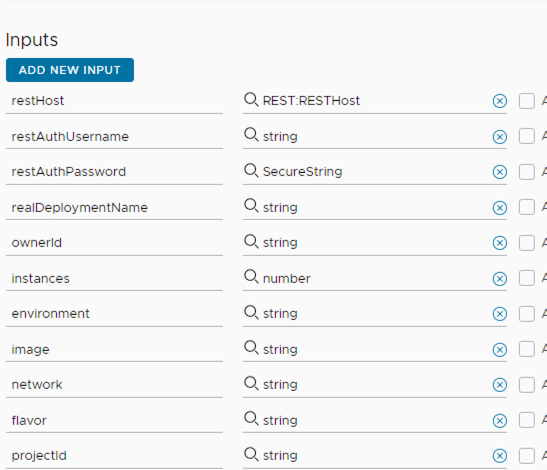
Now those inputs need to be part of the action and the workflow we’re going to use, as you can see here:

vRO Action Inputs

You can see that we have some extra inputs that are not in the blueprint!

  • All the REST configuration will be variables of the workflow that is calling the action. This will use the previously configured REST host and the credentials
  • ProjectId is needed for the deployment, and we get that from the Service Broker Form
  • ownerId is needed for the deployment change owner action, and we get that from the execution context of the workflow that is being called by the service broker form
  • realDeploymentName is the actual deployment name (remember that the Service Broker form will use the temporary deployment name, and the actual deployment will use the name you input.

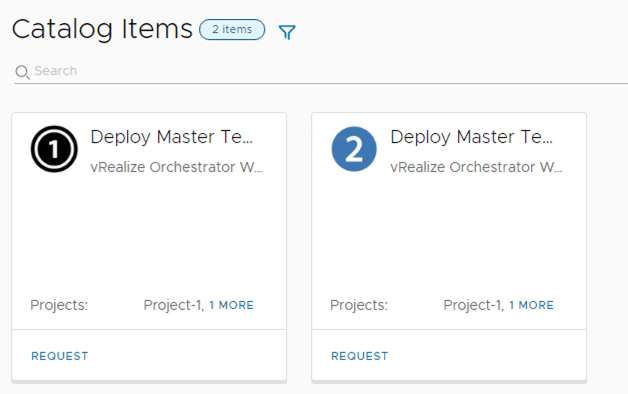
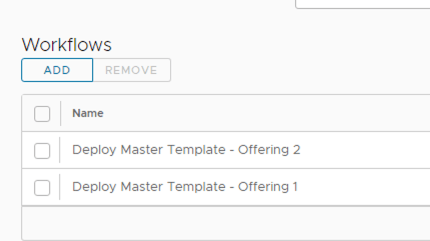
So what does the structure look like? In this case, we have two offerings for two projects:

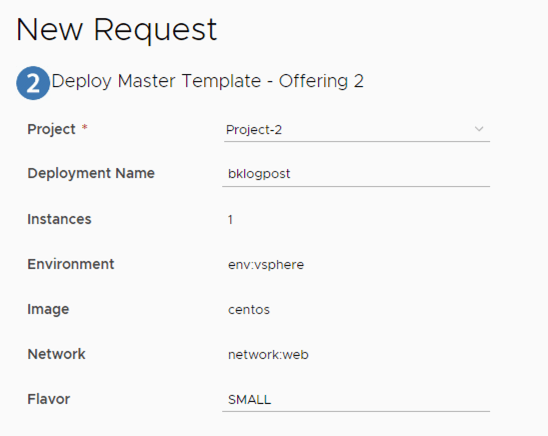
Each of them have different configurations for the fields, for example:

projectId and temporary deployment name are visible fields, the rest is editable
projectId and temporary deployment name are not visible, plus, a bunch of fields aren’t editable

These two service broker forms map to two vRO workflows:

The two workflows

Why do I need two workflows? because as mentioned before, I can’t use two service broker forms for the same catalog item. However, these two vRO workflows are just wrappers of the ‘main’ workflow

The ‘offering’ workflow is just a wrapper for the base workflow

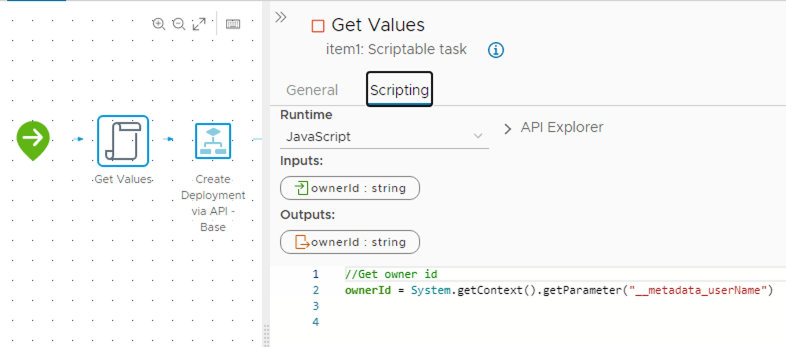
However, there is an important caveat here. The ownerId will only be part of the workflow that is called by Service Broker, in this case, the wrapper one. So the information for the requester is on the execution context of this workflow.

And I need to pass that to the base workflow. So how do I do that? By extracting the property from the execution context, and then passing it to the base workflow.

The only thing left now is to destroy the temporary deployment after it is done with the API one. So how do we do that?

We have a workflow that will delete a deployment via API – It basically calls the the deployments API with a DELETE action

//delete Deployment
System.log(deploymentId)
var request = restHost.createRequest("DELETE", "/deployment/api/deployments/"+deploymentId);
request.contentType = "application/json";
request.setHeader("accept", "application/json");
request.setHeader("Authorization", "Bearer " + tokenResponse)
 
//Attempt to execute the REST request
try {
    response = request.execute();
    jsonObject = JSON.parse(response.contentAsString);
    System.log(response.contentAsString)
}
catch (e) {
    throw "There was an error executing the REST call:" + e;
}

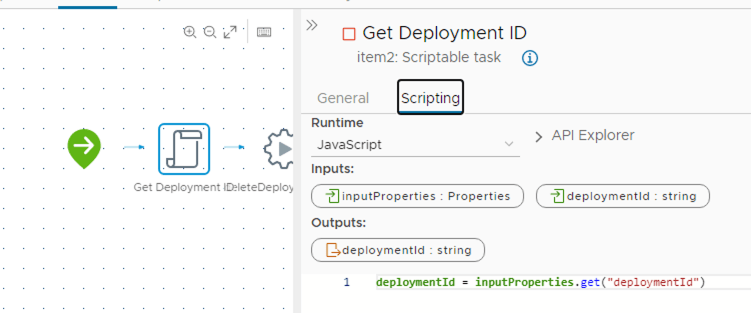
The deploymentId comes from the subscription run. Since this is run from the Event Broker state ‘Deployment Completed’, we have the deploymentId available there

deploymentId parameter on the event broker state

So we just extract it (the same way we did with the execution context) but from the inputProperties (payload used in the event broker subscriptions)

So how does all of this look in an actual run? Let’s show it in a video! (takes around 6 minutes, you will see the temporary deployment being generated, then the actual one via the API, the owner name change, and the destruction of the original one.

Deployment DEMO!!!

And I’m going to attach the code of the two most important actions that form the workflows (deployViaApi and deleteDeployment) here:

https://github.com/luchodelorenzi/scripts/blob/master/deleteViaAPI.js

https://github.com/luchodelorenzi/scripts/blob/master/deployViaAPI.js

Summary

I hope you enjoyed reading and understanding this as much as I did while trying to come up with this solution and then making this a reality. This idea can be heavily customized to suit other use cases (and grow this one way more) but the principles used here should still apply!

Please leave your feedback in the comments if you liked it, and share it!

Improving vRA 8 Custom Forms loading times – A practical example using vRO Configuration Elements as a Database!

Hello Everyone!

On today’s post, we will dive into a practical example to use vRealize Orchestrator Configuration Elements to help with a business need for vRA 8 Custom Forms!

The Problem

Customer X is using a single cloud template with multiple inputs backed by vRO Actions. The main input, and what defines pretty much all the rest, is the project selected. Given the complexity of the inputs, the cloud template can be used by all projects and by many different use cases.

Customer X was trying to improve the form loading times, which were around 10 seconds for the initial loading, plus 10 more seconds every time they changed the project in the form. This heavily impacted the user experience since it was giving a sensation of ‘slowness’ overall to anyone that was requesting the items.

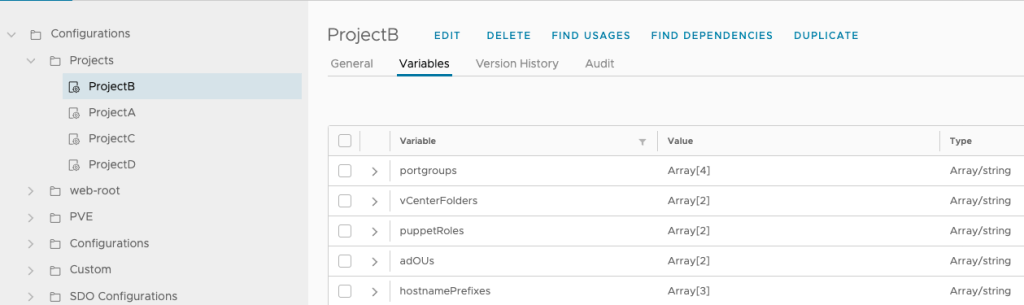
The project defines, for example (there are more fields, but these are the ones we will use as example):

  • Hostname prefixes
  • Puppet roles
  • AD OUs
  • Portgroups
  • vCenter Folders

Each project has a ‘Project Map’ which contains different modifiers to then perform a different search in an external API, which has a cache of the objects needed, to reduce the time needed to gather the data (for example, sending API calls to vCenter to get folders)

However, the fact that the Project Map does not have all the information and needs to be processed in real time ends up adding more loading time to the form than desired.

A solution: vRO Configuration Elements

Emphasis on ‘A solution’ and not ‘THE solution’ since there could be other (even better!) ways to solve this problem, but this is how I approached it and will show it in this blog post.

vRO configuration elements, are originally used for example, for sets of variables that will be used in multiple internal actions/workflows, to avoid having the same data in many places, and for ease of managing. The configuration elements can be referenced in workflows or actions and the information is only changed in a single place.

However, there is another use we can give to configuration elements and that is using them as a Database!

All the configuration elements reside in the vRO DB, and the elements used can be of any of the types that exist within vRO.

For more information about configuration elements you can visit: https://docs.vmware.com/en/vRealize-Orchestrator/8.6/com.vmware.vrealize.orchestrator-using-client-guide.doc/GUID-F2F37F70-9F55-4D87-A3BB-F40B6D399FF8.html

So what is the approach here?

  • Creating a Configuration Elements category called ‘Projects’
  • Create one configuration element per project, within that category. The easiest way to accomplish this is to create one configuration element, define all the needed attributes, and then just duplicate that configuration element to match all the projects you need – In this case, since we need to retun this to vRA Custom Forms, mostly in drop-down form, we will be using string arrays
One configuration element per project, with the variables mentioned
  • An action that will return the values to the custom forms, using two inputs, the Project we want to get the information from, and the value that we want to get. That makes the action reusable by multiple fields in the form: In this case, I called it getConfigurationElementValue and it can be seen on the following link: https://github.com/luchodelorenzi/scripts/blob/master/getConfigurationElementValue.js
  • An action or workflow that will:
    • Get the data from the external API
    • Populate the configuration elements with that data

For this example, since I don’t have any external API in my lab, I will use static arrays to demonstrate the point in the code: The action is called updateConfigurationElements and can be seen in the following link https://github.com/luchodelorenzi/scripts/blob/master/updateConfigurationElements.js

This action/workflow can be scheduled to run every minute, every 5 minutes, depending on the need.

The data will be persisted in the vRO DB so that’s why I’m calling this a ‘database’ instead of a cache, however, it could very well be called a ‘persistent cache’ since all it is doing is to make the data available to the user as fast as possible but not doing any processing.

This workflow runs every 5 minutes and updates the values on all the existing projects (Configuration Elements)

The important thing to note here is that there isn’t any processing from the Custom Form to the vRO configuration elements when the user requests a catalog item!. Getting the data directly from the vRO DB without any processing at request time is what is going to give us the fastest loading times. All the processing is done in the background, without none of the requesters noticing!

  • The last step is to refer to the getConfigurationElementValue action in our custom form
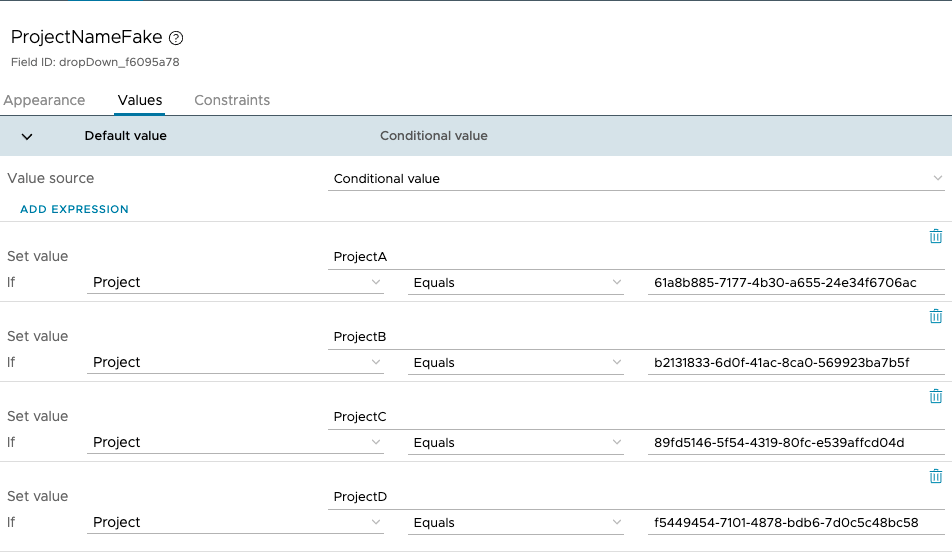
    • A small caveat – the way vRA 8 and the ‘Project’ field works is that even though the project shows the user the names to be chosen, it is actually processing the IDs, so in this case I added a hidden field called ProjectName which is what I will be actually using to convert the IDs to names (since the configuration elements are based on the name)
Mapping the Project IDs to names
Using the getConfigurationElementValue action to get the values needed in the form

This is a small demo of how this works, take a look at the loading times for the form and changing the project! (And this is on a nested lab!)

Video Demo

Summary

To reiterate, the important things are:

  • No (or as little processing as possible if there is a field that cannot be used with configuration elements) should be done in the actions that are returning the data to the custom form
  • All the data should be processed in the background – The requester won’t be aware of it
  • Adding new projects it is as simple as duplicating one of the existing ones and changing the name. The way the workflows and actions are coded in this example will always look for every project (configuration element) below the ‘Projects’ folder
  • Getting the data out of the vRO DB directly via configuration elements instead of going to external sources, is the fastest way to get the values in the form.

Closing Note

I hope you found this interesting! It is using configuration elements in a way that might not be the most common usage, but it can bring great benefits to user experience when interacting with vRA requests. Having the data processed in the background and having really short form loading times will give the sensation of having more ‘speed’ to the tool itself!

Feel free to share this or leave a comment if you thought it was interesting!

Until next time!

Using ABX to change DNS Servers for a vRA Deployment at provisioning time

Hello Everyone,

On today’s post, we will go through creating an ABX Action to change the DNS Servers for a Deployment in vRA8. This might be needed to do in scenarios in which, even though the network has DNS servers configured, a specific deployment might require to use other DNS Servers while still being on the same network, for example, to join a different AD domain

The same idea can be used to edit other fields of the deployment, such as the IP Address, search domains, etc.

The post will be divided in 5 sections:

  • Cloud Template
  • Event Topic
  • ABX Action
  • ABX Subscription
  • Test

Cloud Template

In the template we’re going to need two inputs – dnsServers (comma separated list of DNS Servers) as well as an input to manage the amount of VMs in the deployment, we can call it ‘instances’

 instances:
    type: integer
    title: Amount of VMs
    default: 1
    maximum: 5
  dnsServers:
    type: string
    description: Comma separated list of DNS Servers
    title: DNS Servers
    default: '1.1.1.1,8.8.8.8'

These two values will be custom properties on the VM Object

properties:
   count: '${input.instances}'
   dnsServers: '${input.dnsServers}'

In addition to this, the network assignment for the VM resource should be set to ‘static’. A customization specification profile is optional, since using a ‘static’ assignment will auto-generate a ‘ghost’ customization specification profile at the time of provisioning

networks:
    - network: '${resource.VMNetwork1.id}'
      assignment: static

Event Topic

The event topic that we need to use to make changes to the Network Configuration is the one that has the object that we need to edit being presented to the workflow in an editable state, as in, not read-only.

For this specific use, the state is Network Configure

Pay special attention to the ‘Fired once for a cluster of machines’ part

The dnsServers object is a 3D Array, so that is what we need to use in the ABX Action Code

So from this point we learn that:

  • The action will run once for a cluster of machines, so if we were to do a Multi-VM deployment we need to take this into account, otherwise, it will only run for a single VM and not all of the VMs in the deployment
  • a 3D array needs to be used to insert the DNS Servers into the object at the event topic

ABX Action

For this example, I will use Python, and I will not use any external libraries for array management (such as numpy) since I wanted to see if it could be done natively. Python has way better native support for lists than it does for arrays, but in this case, given the schema of the object in the event topic, we’re forced to use a 3D Array.

The first thing we need to do when creating the action, is to add the needed inputs. In this one, I will add the custom properties of the resources as an input

Adding the custom properties

Once we have that as an input, we can use it to get the data we need (amount of instances and DNS servers)

To pass data back to the provisioning state, we will use and return the ‘outputs’ object

This is the code of the action itself, I will explain it below

def handler(context, inputs):
    outputs = {}
    dnsServers = [[[]]]
    instances = inputs["customProperties"]["count"]
    inputDnsServers = inputs["customProperties"]["dnsServers"].split(",")
    if (len(inputDnsServers) > 0):
        outputs["dnsServers"] = dnsServers
        outputs["dnsServers"][0][0] = inputDnsServers
        for i in range(1,int(instances)):
            outputs["dnsServers"] = outputs["dnsServers"] + [[inputDnsServers]]
    return outputs
  • Define the outputs object
  • Define the 3D Array for DNS Servers
  • Assign the inputs as variables in the script
  • Convert the comma separated string into a List
  • If the list is not empty (this means that the user did enter a value in the DNS Servers list on the input form) then we add the 3D Array to the outputs object.
    • Why am I asking to see if it is empty? Because if the user did not put anything on the field, we will be overwriting the output with an empty array, and that will overwrite the DNS that were read from the network in vRA. We only want to overwrite that if we’re actually changing the DNS Servers.
  • Also in the same condition, we want to add the DNS Servers array to each VM, so we iterate through the amount of VMs.
    • The way to add it without using numpy (we have no append method) is not elegant, but it does the trick. Basically, we initialize the first element and then we add other elements to the same array using the same format.
  • Return the outputs object

This can also be done in javascript and powershell, the idea would be the same.

So how does this object look like in an actual run?

In this example, I changed the DNS for 3 VMs – You can see that we’re using the 3D Array Structure

Lastly, we need to configure a subscription for it to run at this specific state.

ABX Subscription

This is the most straightforward part – We create a blocking subscription in the Network Configure state, and we add the action we just created

The ABX subscription can be filtered via a condition (for example, to run only on specific cloud templates) as well.

So let’s do our deployment now!

The network i’m going to select has the 8.8.8.8 DNS configured

This will be overwritten by whatever we put on the input form. I’m going to use 1.2.3.4 and 5.6.7.8 for this example, and there will be 2 VMs in the deployment

We can check the output of the action before the deployment finishes

Action run started by an Event (Subscription)
Action output

In there we can see the actual code that run, if it was successful or not, the payload, and the output the action had. In this case, our two DNS Servers for our two VMs with a successful output.

Checking the DNS for one of the VMs, we can see the two DNS Servers we selected as inputs!

Success!!!

Summary

I hope you found this post useful! The same idea can be used to change several other properties at provisioning time. Also, it was a learning experience for me to learn how to play with arrays in Python natively, and how to interact with ABX properly.

More posts will be coming soon!

If you liked this one, please share it and/or leave a comment!

Configuring a Dynamic Multi-NIC Cloud Template in vRA 8.x

Hello Everyone,

On today’s post, I will focus on a Dynamic Multi-NIC configuration for a Cloud Template in vRA 8.x

This allows customers to reuse the same cloud templates for virtual machines that could have a different amount of NICs, and this amount is defined at the time of the request. If this wasn’t dynamic, then a cloud template with three networks, will always need to have three networks configured at the time of the request, which might not be the case.

Using a Dynamic construct allows for less cloud template sprawl, since multiple application configurations can use the same cloud template.

Since this configuration is not trivial, this post will be a step by step guide on how to achieve this result.

Current Environment

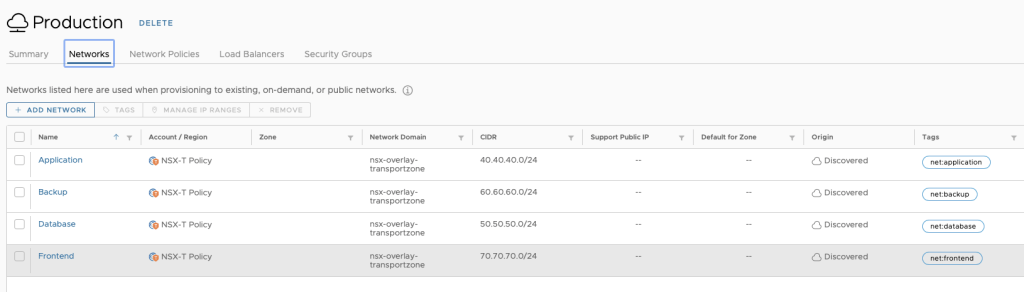
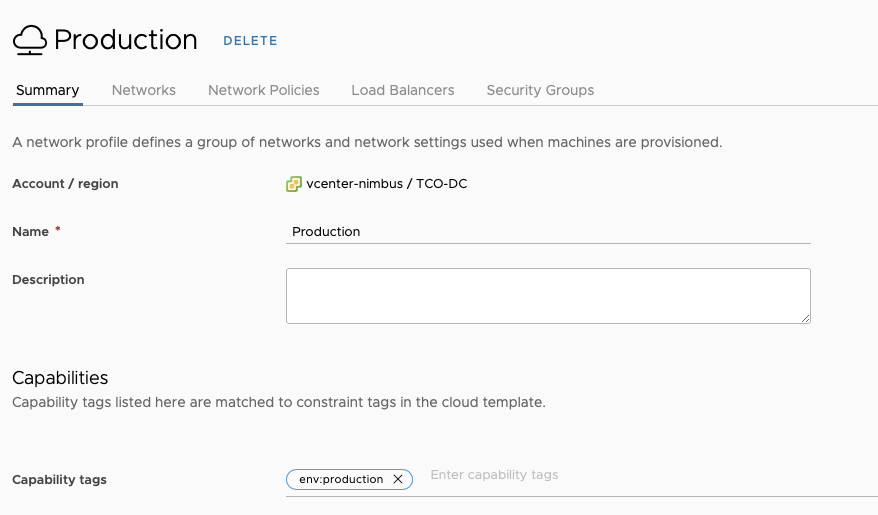
For this Lab demonstration, we will use a vSphere Cloud Account, 4 NSX-T segments that are part of a Network Profile with a capability tag named “env:production” – In doing so, when using that constraint tag in the cloud template, we can guarantee our deployment will use that specific network profile.

The 4 NSX-T segments also have a single tag that refers to the type of network it is. In this scenario, Application, Frontend, Database and Backup are our 4 networks.

NSX-T Segments tagged and defined in the network profile
‘env:production’ tag in the network profile

Creating the Cloud Template

To get the Dynamic Multi-NIC configuration on the Cloud Template to work, we need the following things:

  • Inputs for Network to NIC mapping based on tagging
  • Inputs for NIC existence
  • Network Resources
  • VM Resource and Network Resource assignment

In addition to this, we can do customization in Service Broker to change the visibility of the fields. This is done to only allow the requester to choose a network mapping for a NIC what will actually be used.

Inputs for Network to NIC mapping based on tagging

This cloud template will allow for configurations of up to 4 NICs, and since we have 4 networks, we should let the requester select, for each NIC, what networks can be used.

This is what it looks like

Network1:
    type: string
    description: Select Network to Attach to
    default: 'net:application'
    title: Network 1
    oneOf:
      - title: Application Network
        const: 'net:application'
      - title: Frontend Network
        const: 'net:frontend'
      - title: Database Network
        const: 'net:database'
      - title: Backup Network
        const: 'net:backup'
  Network2:
    type: string
    description: Select Network to Attach to
    default: 'net:frontend'
    title: Network 2
    oneOf:
      - title: Application Network
        const: 'net:application'
      - title: Frontend Network
        const: 'net:frontend'
      - title: Database Network
        const: 'net:database'
      - title: Backup Network
        const: 'net:backup'
  Network3:
    type: string
    description: Select Network to Attach to
    default: 'net:database'
    title: Network 3
    oneOf:
      - title: Application Network
        const: 'net:application'
      - title: Frontend Network
        const: 'net:frontend'
      - title: Database Network
        const: 'net:database'
      - title: Backup Network
        const: 'net:backup'
  Network4:
    type: string
    description: Select Network to Attach to
    default: 'net:backup'
    title: Network 4
    oneOf:
      - title: Application Network
        const: 'net:application'
      - title: Frontend Network
        const: 'net:frontend'
      - title: Database Network
        const: 'net:database'
      - title: Backup Network
        const: 'net:backup'

We can see that each of the inputs allows for any of the networks to be selected.

Inputs for NIC Existence

Other than the first NIC (which should always exist, otherwise our VM(s) wouldn’t have any network connectivity, we want to be able to deploy VMs with 1, 2, 3, and 4 NICs, using the same Cloud Template.

To achieve that, we will create 3 Boolean Inputs that will define if a NIC should be added or not.

needNIC2:
    type: boolean
    title: Add 2nd NIC?
    default: false
  needNIC3:
    type: boolean
    title: Add 3rd NIC?
    default: false
  needNIC4:
    type: boolean
    title: Add 4th NIC?
    default: false

Network Resources

To manage the configuration of the NICs and networks, the network resources for NICs 2, 3 and 4 will use a count property, and this property’s result (either 0 if it doesn’t exist, or 1 if it does exist) will be based on the result of the inputs. Network 1 will not use that property

Also, we will use the deviceIndex property to maintain consistency with the numbering – So the network resources look like this

Network1:
    type: Cloud.vSphere.Network
    properties:
      networkType: existing
      deviceIndex: 0
      constraints:
        - tag: '${input.Network1}'
        - tag: 'env:production'
  Network2:
    type: Cloud.vSphere.Network
    properties:
      networkType: existing
      count: '${input.needNIC2 == true ? 1 : 0}'
      deviceIndex: 1
      constraints:
        - tag: '${input.Network2}'
        - tag: 'env:production'
  Network3:
    type: Cloud.vSphere.Network
    properties:
      networkType: existing
      count: '${input.needNIC3 == true ? 1 : 0}'
      deviceIndex: 2
      constraints:
        - tag: '${input.Network3}'
        - tag: 'env:production'
  Network4:
    type: Cloud.vSphere.Network
    properties:
      networkType: existing
      count: '${input.needNIC4 == true ? 1 : 0}'
      deviceIndex: 3
      constraints:
        - tag: '${input.Network4}'
        - tag: 'env:production'

The constraint tags that are used are the Network Input (to choose a network) and the ‘env:production’ tag to make our deployment use the Network Profile we defined earlier.

VM Resource & Network Resource Assignment

This is the tricky part – Since our networks could be non-existent (if the needNic input is not selected) we cannot use the regular syntax to add a network, which would be something like:

networks:
        - network: '${resource.Network1.id}'
          assignment: static
          deviceIndex: 0
        - network: '${resource.Network2.id}'
          assignment: static
          deviceIndex: 1
      ...

This will fail on the Cloud Template validation because the count for Network2 could be zero, so to do the resource assignment, we need to use the map_by syntax.

Several other examples can be seen on the following link: https://docs.vmware.com/en/vRealize-Automation/8.5/Using-and-Managing-Cloud-Assembly/GUID-12F0BC64-6391-4E5F-AA48-C5959024F3EB.html

The VM resource uses a simple Ubuntu Image with a Small Flavor, so here is what it looks like once the map_by syntax is used for the assignment

Cloud_vSphere_Machine_1:
    type: Cloud.vSphere.Machine
    properties:
      image: Ubuntu-TMPL
      flavor: Small
      customizationSpec: Linux
      networks: '${map_by(resource.Network1[*] + resource.Network2[*] + resource.Network3[*] + resource.Network4[*], r => {"network":r.id, "assignment":"static", "deviceIndex":r.deviceIndex})}'
      constraints:
        - tag: 'env:production'

28/07/22 Update

I’ve gotten comments saying this didn’t work in newer versions such as vRA 8.7 or 8.8. The syntax for those versions might be:

networks: '${map_by(resource.Network1[*].* + resource.Network2[*].* + resource.Network3[*].* + resource.Network4[*].*, r => {"network":r.id, "assignment":"static", "deviceIndex":r.deviceIndex})}'

This allows for any combination of NICs, from 1 to 4, and if the count of one of the resources is 0, it won’t be picked up by the assignment expression.

This is what the Cloud Template looks on the canvas. You can see that Networks 2, 3 and 4 have the appearance of possible multiple instances. This is because we’re using the count parameter.

Canvas view of the Cloud Template

If we were to deploy this Cloud Template, it will look like this:

Doesn’t make much sense to select networks that we won’t assign, right?

How do we fix this? We can leverage Service Broker to manage the visibility of the fields based on the boolean input!

Using the inputs as conditional value for the visibility of the network field

So now, from Service Broker, it looks like this:

No extra NICs selected
NICs 2 and 3 selected

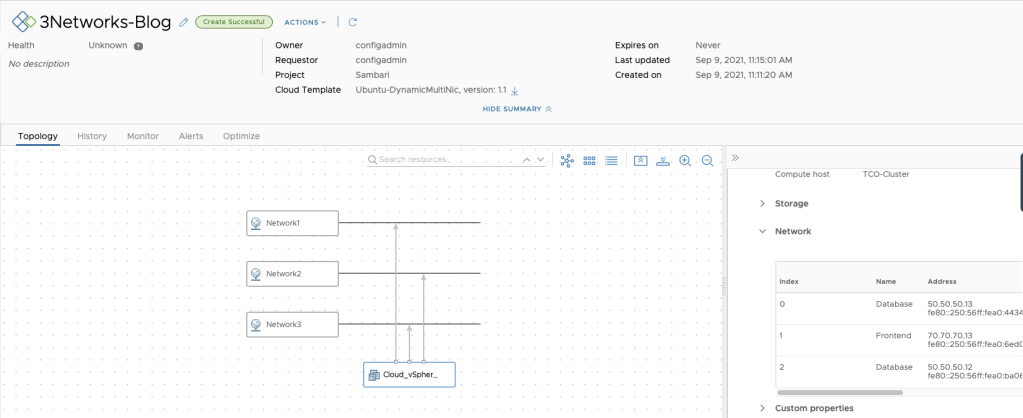
So if we deploy this, it should have three networks assigned. The first NIC should use the Application Network, the second NIC should use the Frontend Network and the 3rd NIC should use the Database Network.

Let’s test it!

TA-DA!

We can see that even if the Cloud Template had 4 Network Resources, only 3 were instantiated for this deployment! And each network was mapped to a specific NSX-T segment, thanks to the constraint tags.

Closing Note

I hope this blog post was useful – The same assignment method can be used for other resources such as Disks or Volumes – the principle is still the same.

Feel free to share this if you found it useful, and leave your feedback in the comments.

Until the next time!

Updating an Onboarded Deployment in vRA 8.x

Hello Everyone!

On today’s post, we will go through the process of updating an onboarded deployment in vRA 8.x

The onboarding feature allows customers to add VMs that were not deployed from vRA, to the vRA infrastructure. This means that these VMs are added to one or more deployments, and once they exist within vRA, operations such as power cycling, opening a remote console, or resizing CPU/RAM are now available.

However, there are scenarios in which customers would want to expand these deployments, not with new onboarded VMs, but with newly deployed VMs (or other resources) from vRA! These deployments will use an image, a flavor, could use a multitude of inputs, tagging, networks, etc. So how do we do this?

Onboarding the VMs using an auto-generated Cloud Assembly Template

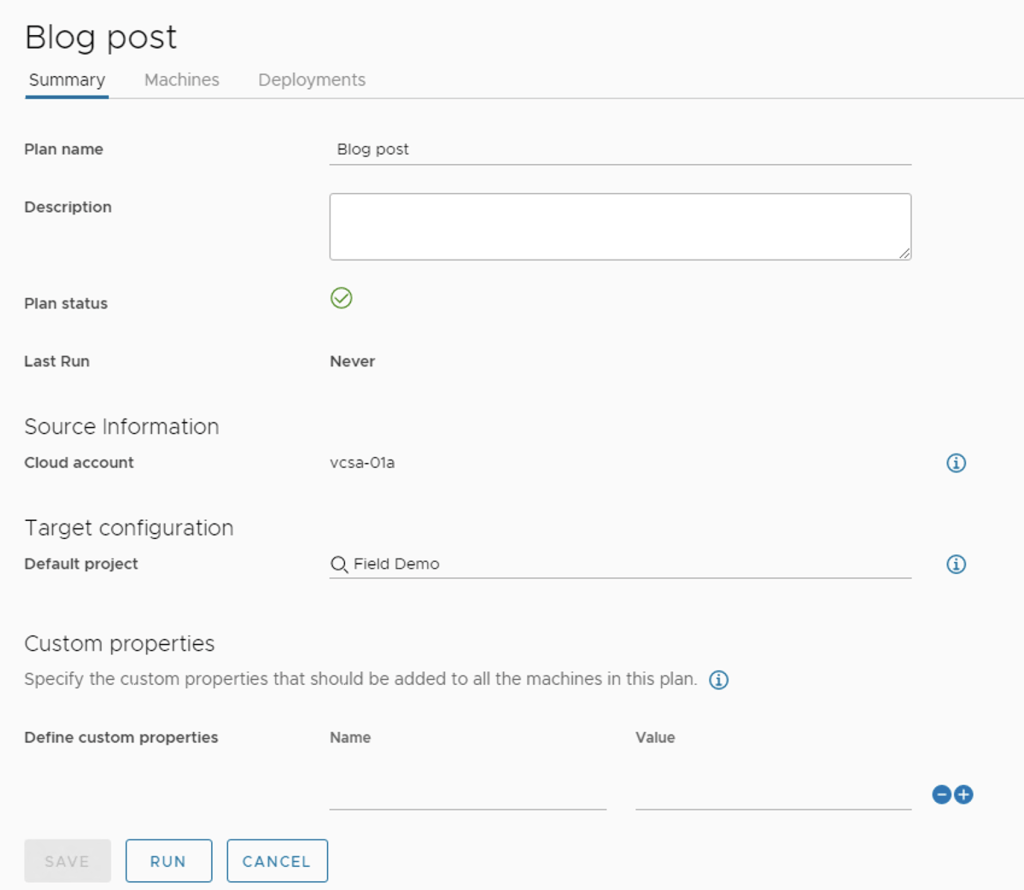
The first thing we need to do, is to create an onboarding plan, select a name for our deployment, and select the VMs we’re going to onboard initially.

Creating the Onboarding Plan
Adding two VMs to be onboarded

On the deployments tab, we can rename the deployment if needed, but the most important part is to select Cloud Template Configuration and change it to Create Cloud Template in Cloud Assembly Format this will allow us to have a source for our deployment, that we can edit afterwards to allow for future growth

Cloud Template in Cloud Assembly format

It is important to note that the imageRef has no image available. Since this is not a vRA Deployment but an Onboarding, none of the resources are being deployed from any of the images. We will come back to this item later.

After saving this configuration and clicking on Run, our deployment will be onboarded

Updating the onboarded deployment to add a new VM in a specific network

If we check on the onboarded deployment, we will see that it is mapped to a specific Cloud Template (the one that was auto-generated earlier by the Onboarding Plan)

So if we were to do an update on this deployment, we need to edit that Cloud Template

I will now add a vSphere Machine resource as well as a vSphere Network:

inputs: {}
resources:
  Cloud_vSphere_Machine_1:
    type: Cloud.vSphere.Machine
    properties:
      image: 'ubuntu'
      cpuCount: 1
      totalMemoryMB: 1024
      networks:
        - network: '${resource.Cloud_vSphere_Network_1.id}'
  Cloud_vSphere_Network_1:
    type: Cloud.vSphere.Network
    properties:
      networkType: existing
      constraints: 
        - tag: env:vsphere  
  DevTools-02a:
    type: Cloud.vSphere.Machine
    properties:
      imageRef: no_image_available
      cpuCount: 1
      totalMemoryMB: 4096
  DevTools-01a:
    type: Cloud.vSphere.Machine
    properties:
      imageRef: no_image_available
      cpuCount: 1
      totalMemoryMB: 4096
  

This is what our template looks like now. So the next thing we should do is click on Update, right?

Update is Greyed out!

The update task is greyed out because ir Cloud Template does not have inputs. Since we don’t have inputs, what we need to do is to go to the Cloud Template, and instead of selecting Create a New Deployment we should select Update an Existing Deployment and then click on the onboarded deployment.

Updating the Onboarded Deployment

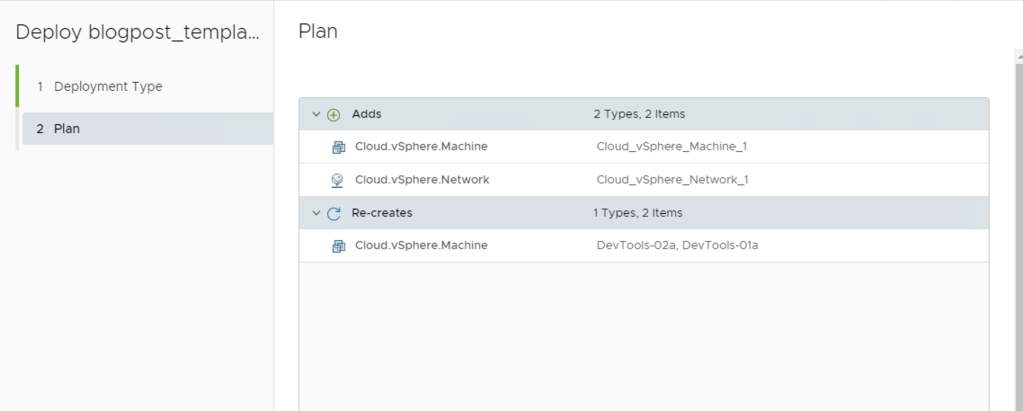
After clicking on Next, the plan is presented.

Notice something wrong here?

The update operation will attempt to re-create the onboarded VMs! That’s not something we want, and also, in this scenario, it will fail since there is no image mapping to deploy from!

What we want is to leave all the VMs that were previously onboarded, untouched, and only add our new VM and network. So how do we achieve this?

This is achieved by adding the ignorechanges parameter with a value of true to every resource in the cloud template that was previously onboarded – In this scenario, this would be our 2 DevTools VMs

Adding the ignoreChanges parameter

If we re-try updating the deployment now, the only tasks that should appear will be the ones for the new resources (VM and Network)

Update deployment showing the new tasks

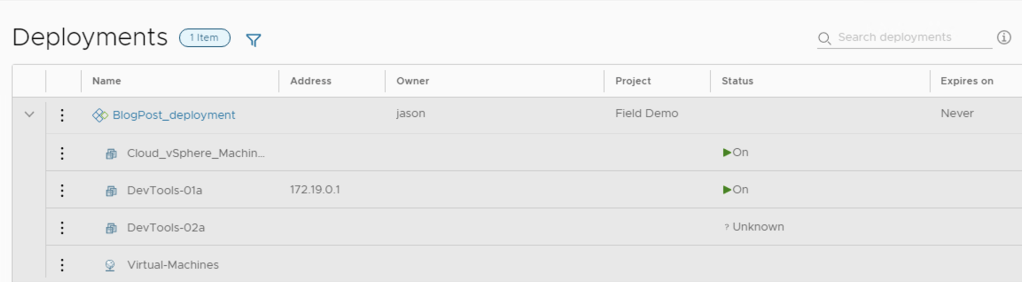
After clicking on ‘deploy’ and waiting for it to finish, our deployment will now like this

Deployment updated with our new VM and network! Hooray!

Offboarding/Unregistering limitations

It is important to note that vRA’s limitations for unregistering VMs are still present. The only VMs that can be unregistered from vRA are the ones that were previously onboarded. VMs that were deployed from vRA will not be able to be unregistered without deletion. The fact that the deployment VMs are part of an Onboarded Deployment does not change this.

Closing Note

I hope you enjoyed this post! When I started working on this use case I figured it was not as trivial as I thought, and after doing research and testing, found this walkthrough/solution.

Let me know if this was useful in the comments!

Until next time!

Deploying a non-standard VCF 4.2 Workload Domain via API!

Getting started with VMware Cloud Foundation (VCF) - CormacHogan.com

Hello Everyone!

On today’s post, as a continuation of the previous post (in which we talk about the VCF MGMT Domain) I will show a step by step guide of how to do a complete deployment of a VCF Workload Domain, subject to some specific constraints based on a project I was working on, using VCF’s API!

What’s this non-standard architecture like?

In this specific environment, I had to play around the following constraints

  • 4 hosts with 256GB of RAM using vSAN, check the previous post for information about the MGMT domain!
  • 3 Hosts with 256GB of RAM, using vSAN
  • 3 Hosts with 1.5TB of RAM, using FC SAN storage
  • Hosts using 4×10 NICs
  • NIC Numbering not being consistent (some hosts had 0,1,2,3 – other hosts had 4,5,6,7 – even though this can be changed editing files on the ESXi, it is still a constraint and can be worked around using the API)

With this information, the decision was to:

  • Separate the Workload Domain into 2 clusters, one for NSX-T Edges and the other one for Compute workloads, given the discrepancies in RAM and storage configuration, they could never be part of the same logical cluster.

This looks something like…

It is impossible to deploy this using the GUI, due to the following:

  • Can’t utilize 4 Physical NICs for a Workload Domain
  • Can’t change NIC numbering or NIC to DVS uplink mapping

So we have to do this deployment using the API! Let’s go!

Where do we start?

First of all, VCF’s API documentation is public, and this is the link to it: https://code.vmware.com/apis/1077/vmware-cloud-foundation – I will be referring to this documentation A LOT over the course of this blog post

All the API calls require the use of a token, which is generated with the following request (example taken from the documentation)

cURL Request

$ curl 'https://sfo-vcf01.rainpole.io/v1/tokens' -i -X POST \
    -H 'Content-Type: application/json' \
    -H 'Accept: application/json' \
    -d '{
  "username" : "administrator@vsphere.local",
  "password" : "VMware123!"
}'

Once we have the token, we can use it in other API calls until it expires and we just either refresh it or create a new one. All the VCF API calls that are generated to SDDC manager (not internal API calls) will require the usage of a bearer token.

List of steps to create a workload domain

  • Commission all hosts from SDDC manager and create network profiles appropriately to match the external storage selection – In this scenario, we will have a network profile for the vSAN based hosts, as well as another network profile for the FC SAN based hosts. Hosts can also be commissioned via API calls (3.65 in the API reference) instead of doing it via the GUI, but the constraints I had did not prevent me from doing it via GUI.
  • Get all the IDs for the commisioned hosts – The API Call is “2.7.2 Get the Hosts” and it is a GET call to https://sddc_manager_url/v1/hosts using Bearer Token authentication
  • Create the Workload Domain with a single cluster (Compute) – The API Call is “2.9.1 Create a Domain”
  • Add the Secondary Cluster (Edge) to the newly-created workload domain – The API Call is “2.10.1 Create a Cluster”
  • Create the NSX-T Edge Cluster on top of the Edge Cluster – The API Call is “2.37.3 – Create Edge Cluster”

For each of these tasks, we should first validate our JSON body before executing the API call. We will discuss this further.

You might ask, why don’t you create a Workload Domain with two clusters instead of first creating the Workload Domain with a single cluster and then adding the second one?

This is something I hit during the implementation – If we check the Clusters object on the API, we can see it is an array, so it should be able to work with multiple cluster values.

"computeSpec": { "clusterSpecs": [

The info on the API call also points to the fact that we should be able to create multiple clusters on the “Create Domain” call.

Even worse, the validation API will validate an API call with multiple clusters

However, I came to learn (after trying multiples times and contacting the VCF Engineering team, that this is not the case)

For example, if our body looked something like this (with two clusters), the validation API will work!

"computeSpec": {
      "clusterSpecs": [
        {
          "name": "vsphere-w01-cl-01",
          "hostSpecs": [
            {
              "id": "b818ba18-2960-49ce-a876-ed4e0c07a936",
              "licenseKey": "XXXXX-XXXXX-XXXXX-XXXXX-XXXXX",
              "hostNetworkSpec": {
                "vmNics": [
                  {
                    "id": "vmnic0",
                    "vdsName": "vsphere-w01-cl01-vds01"
                  },
                  {
                    "id": "vmnic1",
                    "vdsName": "vsphere-w01-cl01-vds01"
                  },
                  {
                    "id": "vmnic2",
                    "vdsName": "vsphere-w01-cl01-vds02"
                  },
                  {
                    "id": "vmnic3",
                    "vdsName": "vsphere-w01-cl01-vds02"
                  }
                ]
              }
            },
            {
              "id": "bd152a18-7b31-4cd4-a352-b94a7119bb33",
              "licenseKey": "XXXXX-XXXXX-XXXXX-XXXXX-XXXXX",
              "hostNetworkSpec": {
                "vmNics": [
                  {
                    "id": "vmnic0",
                    "vdsName": "vsphere-w01-cl01-vds01"
                  },
                  {
                    "id": "vmnic1",
                    "vdsName": "vsphere-w01-cl01-vds01"
                  },
                  {
                    "id": "vmnic2",
                    "vdsName": "vsphere-w01-cl01-vds02"
                  },
                  {
                    "id": "vmnic3",
                    "vdsName": "vsphere-w01-cl01-vds02"
                  }
                ]
              }
            },
            {
              "id": "18409da3-fbae-47b2-800f-67d032fe21a0",
              "licenseKey": "XXXXX-XXXXX-XXXXX-XXXXX-XXXXX",
              "hostNetworkSpec": {
                "vmNics": [
                  {
                    "id": "vmnic0",
                    "vdsName": "vsphere-w01-cl01-vds01"
                  },
                  {
                    "id": "vmnic1",
                    "vdsName": "vsphere-w01-cl01-vds01"
                  },
                  {
                    "id": "vmnic2",
                    "vdsName": "vsphere-w01-cl01-vds02"
                  },
                  {
                    "id": "vmnic3",
                    "vdsName": "vsphere-w01-cl01-vds02"
                  }
                ]
              }
            }
          ],
          "datastoreSpec": {
            "vmfsDatastoreSpec" : {
              "fcSpec" : [ {
              "datastoreName" : "vsphere-m01-fc-datastore1"
             } ]
             }
          },
          "networkSpec": {
            "vdsSpecs": [
              {
                "name": "vsphere-w01-cl01-vds01",
                "portGroupSpecs": [
                  {
                    "name": "vsphere-w01-cl01-vds-pg-mgmt",
                    "transportType": "MANAGEMENT"
                  },
                  {
                    "name": "vsphere-w01-cl01-vds-pg-vmotion",
                    "transportType": "VMOTION"
                  }
                ]
              },
              {
                "name": "vsphere-w01-cl01-vds02",
                "isUsedByNsxt": true
              }
            ],
            "nsxClusterSpec" : {
            "nsxTClusterSpec" : {
              "geneveVlanId" : 1214,
              "ipAddressPoolSpec" : {
                "name" : "vsphere-w01-np01",
                "subnets" : [ {
                "ipAddressPoolRanges" : [ {
                  "start" : "172.22.14.100",
                  "end" : "172.22.14.200"
                } 
              ],
                "cidr" : "172.22.14.0/24",
                "gateway" : "172.22.14.254"
                } ]
               }
             }
            }
          }
        },
          {
          "name": "vsphere-w01-cl-edge-01",
          "hostSpecs": [
            {
              "id": "aa699b0d-015f-43e9-83ea-6e941b37e642",
              "licenseKey": "XXXXX-XXXXX-XXXXX-XXXXX-XXXXX",
              "hostNetworkSpec": {
                "vmNics": [
                  {
                    "id": "vmnic4",
                    "vdsName": "vsphere-w01-cl-edge-01-vds01"
                  },
                  {
                    "id": "vmnic5",
                    "vdsName": "vsphere-w01-cl-edge-01-vds01"
                  },
                  {
                    "id": "vmnic6",
                    "vdsName": "vsphere-w01-cl-edge-01-vds02"
                  },
                  {
                    "id": "vmnic7",
                    "vdsName": "vsphere-w01-cl-edge-01-vds02"
                  }
                ]
              }
            },
            {
              "id": "1e500b1b-fd33-425c-8c6d-42840cf658db",
              "licenseKey": "XXXXX-XXXXX-XXXXX-XXXXX-XXXXX",
              "hostNetworkSpec": {
                "vmNics": [
                  {
                    "id": "vmnic4",
                    "vdsName": "vsphere-w01-cl-edge-01-vds01"
                  },
                  {
                    "id": "vmnic5",
                    "vdsName": "vsphere-w01-cl-edge-01-vds01"
                  },
                  {
                    "id": "vmnic6",
                    "vdsName": "vsphere-w01-cl-edge-01-vds02"
                  },
                  {
                    "id": "vmnic7",
                    "vdsName": "vsphere-w01-cl-edge-01-vds02"
                  }
                ]
              }
            },
            {
              "id": "e138d6a1-6c55-4326-ac6c-ffc0239e15b5",
              "licenseKey": "XXXXX-XXXXX-XXXXX-XXXXX-XXXXX",
              "hostNetworkSpec": {
                "vmNics": [
                  {
                    "id": "vmnic4",
                    "vdsName": "vsphere-w01-cl-edge-01-vds01"
                  },
                  {
                    "id": "vmnic5",
                    "vdsName": "vsphere-w01-cl-edge-01-vds01"
                  },
                  {
                    "id": "vmnic6",
                    "vdsName": "vsphere-w01-cl-edge-01-vds02"
                  },
                  {
                    "id": "vmnic7",
                    "vdsName": "vsphere-w01-cl-edge-01-vds02"
                  }
                ]
              }
            }
          ],
          "datastoreSpec": {
            "vsanDatastoreSpec": {
              "failuresToTolerate": 1,
              "licenseKey": "XXXXX-XXXXX-XXXXX-XXXXX-XXXXX",
              "datastoreName": "vsphere-w01-ds-vsan-01"
            }
          },
          "networkSpec": {
            "vdsSpecs": [
              {
                "name": "vsphere-w01-cl-edge-01-vds01",
                "portGroupSpecs": [
                  {
                    "name": "vsphere-w01-cl-edge-01-pg-mgmt",
                    "transportType": "MANAGEMENT"
                  },
                  {
                    "name": "vsphere-w01-cl-edge-01-pg-vsan",
                    "transportType": "VSAN"
                  },
                  {
                    "name": "vsphere-w01-cl-edge-01-pg-vmotion",
                    "transportType": "VMOTION"
                  }
                ]
              },
              {
                "name": "vsphere-w01-cl-edge-01-vds02",
                "isUsedByNsxt": true
              }
            ],
            "nsxClusterSpec" : {
                "nsxTClusterSpec" : {
                  "geneveVlanId" : 1214,
                  "ipAddressPoolSpec" : {
                      "name" : "vsphere-w01-np02",
                      "subnets" : [ {
                        "ipAddressPoolRanges" : [ {
                          "start" : "172.22.14.210",
                          "end" : "172.22.14.230"
                        } 
                      ],
                        "cidr" : "172.22.14.0/24",
                        "gateway" : "172.22.14.254"
                        } ]
                    }
                      
                }
            }
           }
        }
      ]
    },

However, when we go ahead and try to create it, it will fail, and we will see the following error on the logs.

ERROR [vcf_dm,02a04e83325703b0,7dc4] [c.v.v.v.c.v1.DomainController,http-nio-127.0.0.1-7200-exec-6]  Failed to create domain
com.vmware.evo.sddc.common.services.error.SddcManagerServicesIsException: Found multiple clusters for add vi domain.
at com.vmware.evo.sddc.common.services.adapters.workflow.options.WorkflowOptionsAdapterImpl.getWorkflowOptionsForAddDomainWithNsxt(WorkflowOptionsAdapterImpl.java:1222)

So, as mentioned earlier, we need to first create our domain (with a single cluster), and then add the 2nd cluster!

1: Create a Workload Domain with a Single Cluster

We will first create our Workload Domain with the compute cluster, which in this scenario, uses external storage, and will use the secondary distributed switch for overlay traffic.

This is my API call body based on the API reference, to create a Workload Domain with a single cluster of 3 hosts, using two VDS, 4 physical NICs numbered from 0 to 3 and external FC storage, using the host IDs that I got after the previous step.

{
    "domainName": "vsphere-w01",
    "orgName": "vsphere.local",
    "vcenterSpec": {
      "name": "vsphere-w01-vc01",
      "networkDetailsSpec": {
        "ipAddress": "172.22.11.64",
        "dnsName": "vsphere-w01-vc01.vsphere.local",
        "gateway": "172.22.11.254",
        "subnetMask": "255.255.255.0"
      },
      "licenseKey": "XXXXX-XXXXX-XXXXX-XXXXX-XXXXX",
      "rootPassword": "VMware1!",
      "datacenterName": "vsphere-w01-dc-01"
    },
    "computeSpec": {
      "clusterSpecs": [
        {
          "name": "vsphere-w01-cl-01",
          "hostSpecs": [
            {
              "id": "b818ba18-2960-49ce-a876-ed4e0c07a936",
              "licenseKey": "XXXXX-XXXXX-XXXXX-XXXXX-XXXXX",
              "hostNetworkSpec": {
                "vmNics": [
                  {
                    "id": "vmnic0",
                    "vdsName": "vsphere-w01-cl01-vds01"
                  },
                  {
                    "id": "vmnic1",
                    "vdsName": "vsphere-w01-cl01-vds01"
                  },
                  {
                    "id": "vmnic2",
                    "vdsName": "vsphere-w01-cl01-vds02"
                  },
                  {
                    "id": "vmnic3",
                    "vdsName": "vsphere-w01-cl01-vds02"
                  }
                ]
              }
            },
            {
              "id": "bd152a18-7b31-4cd4-a352-b94a7119bb33",
              "licenseKey": "XXXXX-XXXXX-XXXXX-XXXXX-XXXXX",
              "hostNetworkSpec": {
                "vmNics": [
                  {
                    "id": "vmnic0",
                    "vdsName": "vsphere-w01-cl01-vds01"
                  },
                  {
                    "id": "vmnic1",
                    "vdsName": "vsphere-w01-cl01-vds01"
                  },
                  {
                    "id": "vmnic2",
                    "vdsName": "vsphere-w01-cl01-vds02"
                  },
                  {
                    "id": "vmnic3",
                    "vdsName": "vsphere-w01-cl01-vds02"
                  }
                ]
              }
            },
            {
              "id": "18409da3-fbae-47b2-800f-67d032fe21a0",
              "licenseKey": "XXXXX-XXXXX-XXXXX-XXXXX-XXXXX",
              "hostNetworkSpec": {
                "vmNics": [
                  {
                    "id": "vmnic0",
                    "vdsName": "vsphere-w01-cl01-vds01"
                  },
                  {
                    "id": "vmnic1",
                    "vdsName": "vsphere-w01-cl01-vds01"
                  },
                  {
                    "id": "vmnic2",
                    "vdsName": "vsphere-w01-cl01-vds02"
                  },
                  {
                    "id": "vmnic3",
                    "vdsName": "vsphere-w01-cl01-vds02"
                  }
                ]
              }
            }
          ],
          "datastoreSpec": {
            "vmfsDatastoreSpec" : {
              "fcSpec" : [ {
              "datastoreName" : "vsphere-m01-fc-datastore1"
             } ]
             }
          },
          "networkSpec": {
            "vdsSpecs": [
              {
                "name": "vsphere-w01-cl01-vds01",
                "portGroupSpecs": [
                  {
                    "name": "vsphere-w01-cl01-vds-pg-mgmt",
                    "transportType": "MANAGEMENT"
                  },
                  {
                    "name": "vsphere-w01-cl01-vds-pg-vmotion",
                    "transportType": "VMOTION"
                  }
                ]
              },
              {
                "name": "vsphere-w01-cl01-vds02",
                "isUsedByNsxt": true
              }
            ],
            "nsxClusterSpec" : {
            "nsxTClusterSpec" : {
              "geneveVlanId" : 1214,
              "ipAddressPoolSpec" : {
                "name" : "vsphere-w01-np01",
                "subnets" : [ {
                "ipAddressPoolRanges" : [ {
                  "start" : "172.22.14.100",
                  "end" : "172.22.14.200"
                } 
              ],
                "cidr" : "172.22.14.0/24",
                "gateway" : "172.22.14.254"
                } ]
               }
             }
            }
          }
        }
      ]
    },
    "nsxTSpec": {
      "nsxManagerSpecs": [
        {
          "name": "vsphere-w01-nsx01a",
          "networkDetailsSpec": {
            "ipAddress": "172.22.11.76",
            "dnsName": "vsphere-w01-nsx01a.vsphere.local",
            "gateway": "172.22.11.254",
            "subnetMask": "255.255.255.0"
          }
        },
        {
          "name": "vsphere-w01-nsx01b",
          "networkDetailsSpec": {
            "ipAddress": "172.22.11.77",
            "dnsName": "vsphere-w01-nsx01b.vsphere.local",
            "gateway": "172.22.11.254",
            "subnetMask": "255.255.255.0"}
        },
        {
          "name": "vsphere-w01-nsx01c",
          "networkDetailsSpec": {
            "ipAddress": "172.22.11.78",
            "dnsName": "vsphere-w01-nsx01c.vsphere.local",
            "gateway": "172.22.11.254",
            "subnetMask": "255.255.255.0"}
        }
      ],
      "vip": "172.22.11.75",
      "vipFqdn": "vsphere-w01-nsx01.vsphere.local",
      "licenseKey": "XXXXX-XXXXX-XXXXX-XXXXX-XXXXX",
      "nsxManagerAdminPassword": "VMware1!VMware1!"
    }
  }

Important!

  • The DVS that is going to be used for overlay traffic must have the isUsedByNsxt flag set to true. In the case of a 4 NIC and 2 VDS deployment such as this one, it shouldn’t have any of the management, vMotion or vSAN traffic.

With the body, to execute the VALIDATE and EXECUTE api calls, we will do the following: (high level overview since we can use any REST API tool such as Postman, curl, invoke-restmethod, or any wrapper from any language that can execute REST calls)

The list of steps will be the same for all the POST API calls, changing the URL to match each specific call.

If the validation is successful, we will get a message similar to:

 "description": "Validating Domain Creation Spec",
    "executionStatus": "COMPLETED",
    "resultStatus": "SUCCEEDED",
    "validationChecks": [
        {
            "description": "DomainCreationSpecValidation",
            "resultStatus": "SUCCEEDED"
        }

We should continue editing and retrying in case of errors until we get the validation to pass, do not attempt to execute the API call without validating it first!

Once the validation has passed, we can follow the same steps that are mentioned above but instead of making a POST call to https://sddc_manager_fqdn/v1/domains/validations, we remove the “validations” part, so it would be a call to https://sddc_manager_fqdn/v1/domains.

The deployment will start and after a couple minutes we will see in the SDDC console that it was successful.

If it were to fail for whatever reason, we can troubleshoot the deployment by checking where it failed on the SDDC console as well as checking logs, but as long as the validation passes, it should not be a problem with the body we’re sending.

2: Adding a 2nd Cluster to the existing workload domain

To add a cluster to an existing domain, the first thing we need is to get the ID of the domain, that can easily be done with a GET call to https://sddc_manager_url/v1/domains and selecting the ID of the workload domain we just created.

Once we get the ID, this is the body (following the API reference) to add a new cluster to an existing domain.

{
    "domainId": "58a6cdcb-f609-49dd-9729-7e27d65440c6",
    "computeSpec": {
      "clusterSpecs": [
          {
          "name": "vsphere-w01-cl-edge-01",
          "hostSpecs": [
            {
              "id": "aa699b0d-015f-43e9-83ea-6e941b37e642",
              "licenseKey": "XXXXX-XXXXX-XXXXX-XXXXX-XXXXX",
              "hostNetworkSpec": {
                "vmNics": [
                  {
                    "id": "vmnic4",
                    "vdsName": "vsphere-w01-cl-edge-01-vds01"
                  },
                  {
                    "id": "vmnic5",
                    "vdsName": "vsphere-w01-cl-edge-01-vds01"
                  },
                  {
                    "id": "vmnic6",
                    "vdsName": "vsphere-w01-cl-edge-01-vds02"
                  },
                  {
                    "id": "vmnic7",
                    "vdsName": "vsphere-w01-cl-edge-01-vds02"
                  }
                ]
              }
            },
            {
              "id": "1e500b1b-fd33-425c-8c6d-42840cf658db",
              "licenseKey": "XXXXX-XXXXX-XXXXX-XXXXX-XXXXX",
              "hostNetworkSpec": {
                "vmNics": [
                  {
                    "id": "vmnic4",
                    "vdsName": "vsphere-w01-cl-edge-01-vds01"
                  },
                  {
                    "id": "vmnic5",
                    "vdsName": "vsphere-w01-cl-edge-01-vds01"
                  },
                  {
                    "id": "vmnic6",
                    "vdsName": "vsphere-w01-cl-edge-01-vds02"
                  },
                  {
                    "id": "vmnic7",
                    "vdsName": "vsphere-w01-cl-edge-01-vds02"
                  }
                ]
              }
            },
            {
              "id": "e138d6a1-6c55-4326-ac6c-ffc0239e15b5",
              "licenseKey": "XXXXX-XXXXX-XXXXX-XXXXX-XXXXX",
              "hostNetworkSpec": {
                "vmNics": [
                  {
                    "id": "vmnic4",
                    "vdsName": "vsphere-w01-cl-edge-01-vds01"
                  },
                  {
                    "id": "vmnic5",
                    "vdsName": "vsphere-w01-cl-edge-01-vds01"
                  },
                  {
                    "id": "vmnic6",
                    "vdsName": "vsphere-w01-cl-edge-01-vds02"
                  },
                  {
                    "id": "vmnic7",
                    "vdsName": "vsphere-w01-cl-edge-01-vds02"
                  }
                ]
              }
            }
          ],
          "datastoreSpec": {
            "vsanDatastoreSpec": {
              "failuresToTolerate": 1,
              "licenseKey": "XXXXX-XXXXX-XXXXX-XXXXX-XXXXX",
              "datastoreName": "vsphere-w01-ds-vsan-01"
            }
          },
          "networkSpec": {
            "vdsSpecs": [
              {
                "name": "vsphere-w01-cl-edge-01-vds01",
                "portGroupSpecs": [
                  {
                    "name": "vsphere-w01-cl-edge-01-pg-mgmt",
                    "transportType": "MANAGEMENT"
                  },
                  {
                    "name": "vsphere-w01-cl-edge-01-pg-vsan",
                    "transportType": "VSAN"
                  },
                  {
                    "name": "vsphere-w01-cl-edge-01-pg-vmotion",
                    "transportType": "VMOTION"
                  }
                ]
              },
              {
                "name": "vsphere-w01-cl-edge-01-vds02",
                "isUsedByNsxt": true
              }
            ],
            "nsxClusterSpec" : {
                "nsxTClusterSpec" : {
                  "geneveVlanId" : 1214,
                  "ipAddressPoolSpec" : {
                      "name" : "vsphere-w01-np02",
                      "subnets" : [ {
                        "ipAddressPoolRanges" : [ {
                          "start" : "172.22.14.210",
                          "end" : "172.22.14.240"
                        } 
                      ],
                        "cidr" : "172.22.14.0/24",
                        "gateway" : "172.22.14.254"
                        } ]
                    }
                      
                }
            }
           }
        }
      ]
    }
  }

Even though we don’t need the cluster to be prepared for NSX-T (since it will only be used for Edges) setting the isUsedByNSXT flag to true will make the secondary VDS used by the uplink portgroups once we create a T0, which is what we want in this scenario – otherwise, we would not be using the 3rd and 4th NICs at all.

As discussed earlier, we should first run the POST call to validate in this case, the URL is https://sddc_manager_fqdn/v1/clusters/validations and after the body is validated, proceed with the creation removing validation from the URL

Last but not least, we need to create our NSX-T Edge Cluster on top of the 2nd cluster on the domain!

3: Create NSX-T Edge Cluster

The last piece of the puzzle is creating the NSX-T Edge Cluster, to allow for this workload domain to leverage overlay networks and communicate to the physical world.

To create the NSX-T Edge Cluster, we first need to get the Cluster ID of the cluster we just created (how many times can you say cluster in the same sentence?)

Following the API reference, number 2.10.1 is ‘Get Clusters’, which does a GET call to https://sddc_manager_fqdn/v1/clusters

Now that we have the ID, this is the body to create two Edge Nodes, configure management, TEP and uplink interfaces, configure a T0 and a T1 instance, as well as configuring BGP peering on the T0 instance!

{
    "edgeClusterName" : "vsphere-w01-ec01",
    "edgeClusterType" : "NSX-T",
    "edgeRootPassword" : "VMware1!VMware1!",
    "edgeAdminPassword" : "VMware1!VMware1!",
    "edgeAuditPassword" : "VMware1!VMware1!",
    "edgeFormFactor" : "LARGE",
    "tier0ServicesHighAvailability" : "ACTIVE_ACTIVE",
    "mtu" : 9000,
    "asn" : 65212,
    "edgeNodeSpecs" : [ {
      "edgeNodeName" : "vsphere-w01-en01.vsphere.local",
      "managementIP" : "172.22.11.71/24",
      "managementGateway" : "172.22.11.254",
      "edgeTepGateway" : "172.22.17.254",
      "edgeTep1IP" : "172.22.17.12/24",
      "edgeTep2IP" : "172.22.17.13/24",
      "edgeTepVlan" : 1217,
      "clusterId" : "37c83ee6-2338-40b0-9470-bb6d47922601",
      "interRackCluster" : false,
      "uplinkNetwork" : [ {
        "uplinkVlan" : 1218,
        "uplinkInterfaceIP" : "172.22.18.2/24",
        "peerIP" : "172.22.18.1/24",
        "asnPeer" : 65213,
        "bgpPeerPassword" : "VMware1!"
      }, {
        "uplinkVlan" : 1219,
        "uplinkInterfaceIP" : "172.22.19.2/24",
        "peerIP" : "172.22.19.1/24",
        "asnPeer" : 65213,
        "bgpPeerPassword" : "VMware1!"
      } ]
    }, {
        "edgeNodeName" : "vsphere-w01-en02.vsphere.local",
        "managementIP" : "172.22.11.72/24",
        "managementGateway" : "172.22.11.254",
        "edgeTepGateway" : "172.22.17.254",
        "edgeTep1IP" : "172.22.17.14/24",
        "edgeTep2IP" : "172.22.17.15/24",
        "edgeTepVlan" : 1217,
        "clusterId" : "37c83ee6-2338-40b0-9470-bb6d47922601",
        "interRackCluster" : false,
        "uplinkNetwork" : [ {
          "uplinkVlan" : 1218,
          "uplinkInterfaceIP" : "172.22.18.3/24",
          "peerIP" : "172.22.18.1/24",
          "asnPeer" : 65213,
          "bgpPeerPassword" : "VMware1!"
        }, {
          "uplinkVlan" : 1219,
          "uplinkInterfaceIP" : "172.22.19.3/24",
          "peerIP" : "172.22.19.1/24",
          "asnPeer" : 65213,
          "bgpPeerPassword" : "VMware1!"
      } ]
    } ],
    "tier0RoutingType" : "EBGP",
    "tier0Name" : "vsphere-w01-ec01-t0-gw01",
    "tier1Name" : "vsphere-w01-ec01-t1-gw01",
    "edgeClusterProfileType" : "DEFAULT"
  }

As mentioned before, please run the VALIDATE call first, in this scenario, a POST call to https://sddc_manager_fqdn/v1/edge-clusters/validations – after validation is passed, proceed to execute the call without the validations on the URL.

After this procedure is finished, we will have our workload domain with two clusters as well as a T0 gateway completely configured and ready to go! Simple and quick, isn’t it?

Closing Note

Leveraging APIs for VCF can help us not only to work with architectures or designs that are not able to be implemented due to GUI restrictions, but also greatly speed up the time we take in doing so!

I hope you enjoyed this post, and if you have any concerns, or want to share your experience deploying VCF via API calls, feel free to do so!

See you in the next post!

Lessons learned while deploying VCF 4.2 Management Domain

Hello Everyone! It’s me again, trying to maintain a weekly post cadence!

Today I’m going to talk about some roadblocks I hit while doing a 4.2 VCF Deployment in a real, customer environment. Hopefully this will prevent these issues from happening to you or help you to solve them quickly if they do arise!

Getting started with VMware Cloud Foundation (VCF) 4.0 - CormacHogan.com

Password Policy for Cloud Builder

In VCF 4.2, several changes to password strength were made. It seems that using 8 character passwords are hit/miss (you could get a valid deployment and then immediately a non-valid deployment if you deploy another Cloud Builder with a password like “VMw@r3!!” – I haven’t been able to fully grasp the cause for this behaviour.

In addition, VMware is now a dictionary word, so it wont be allowed. So “VMware1!” and “VMware1!VMware1!” will also fail.

The password that i’ve been using successfully for the initial deployment is “VMw@r3!!VMw@r3!!” – That one works 100% – You can go ahead and use that one.

Hostnames in uppercase

This one is really, really strange – If the hostnames of your ESXi hosts are in uppercase, you will get a ‘Failed to connect to lowercase_hostname’ for all of your hosts when running the validation, and the validation will stop and won’t query any of the host configuration

I spent some time trying to figure this out, at first I thought it was DNS records, but then on a different environment, 3 of the 4 hosts had their hostname in upper case and one of them in lower case, and the one in lower case was the only one connecting, so that made me test the change and suddenly the new host in lowercase was also connecting!

To clarify, ESXI1.VSPHERE.LOCAL will fail, esxi1.vsphere.local will work – Make sure your hostnames are in lowercase

Heterogeneous / Unbalanced disk configuration across hosts

This one is really interesting, let’s say you’re doing an all flash VCF and you have 20 disks per host – The best way to configure it would be 4 Disk groups of 1 Cache + 4 Capacity, so that you would use all 20 disks.

Since you can have at a maximum 5 Disk groups of 1 Cache + 7 Capacity, 40 is the maximum number of disks you can have.

However, make sure that you’re following these two rules for your deployment

  • Make sure that the amount of disks follows a multiple of a homogeneous disk group configuration so that all your disks can be used and all the disk groups have the same amount of disks – I.e, if you have 22 disks, there is no way you can use all disks while maintaining all disk groups with the same amount of disks. If you have 22 disks, you can do 3 (1+6) and one won’t be used, or 4(1+4) and two won’t be used.
  • Make sure that all your hosts have the same amount of disks. You can check this before installing – In my scenario, validation was passing but it was setting the cluster as hybrid instead of all flash.
    After checking that all devices were SSD and were marked as SSD I was really confused. Then I checked and two of the hosts had 2 more disks than the rest. Fixing that made the validation pass and marking the cluster as all flash.

EVC Mode

This one almost made me reinstall the whole cluster…

BE REALLY SURE that you’re selecting the correct EVC mode for your CPU family if you’re selecting an EVC mode in the Cloud Builder spreadsheet.

If you select the wrong EVC mode, Cloud Builder will fail in this deployment, and you won’t be able to continue from the GUI at all. The only way around it is via the API. Otherwise, it is wiping the cluster and starting from scratch!

I’m going to show you how to fix this issue but the method applies in case you need to edit the configuration and then re-attempt a deployment.

First of all, you need to get your SDDC Deployment ID, you can get it with this API call (I will be using curl for this example but you can also use something like invoke-restmethod in powershell or even a GUI based REST client such as Postman)

Get your SDDC Deployment ID

curl 'https://cloud_builder_fqdn/v1/sddcs/' -i -u 'admin:your_password' -X GET \
    -H 'Content-Type: application/json' \
    -H 'Accept: application/json' \
    -k

You can export the output to a file or to a text viewing tool such as less, and then search for the sddcId value

Editing the JSON File

Once you have the sddcId, you need to edit the JSON file that CB generated from the spreadsheet so you can then use it in the API call. I recommend that you copy the file and edit the copy. The file is located at /opt/vmware/sddc-support/cloud_admin_tools/resources/vcf-public-ems/

#COPY THE FILE
cp /opt/vmware/sddc-support/cloud_admin_tools/Resources/vcf-public-e                                                                                                                     ms/vcf-public-ems.json /tmp/newjson.json
#REPLACE STRING ON FILE
sed -i "s/cascadelake/haswell/g" /tmp/newjson.json

You can also edit the file using vi – in this case I used sed because I knew the string will only appear once in the file and it was faster

Restarting the deployment

Now that you have the sddcId and you’ve edited the JSON file, it is time for you to restart the process using another API call

curl 'https://cloud_builder_fqdn/v1/sddcs/your_sddc_id_from_previous_step' -i -u 'admin:your_password' -X PATCH     -H 'Content-Type: application/json'     -H 'Accept: application/json'     -d "@/tmp/newjson.json"  -k

Make sure to add the @ before the location of the file when using curl

Once you run this, you should get something like:

HTTP/1.1 100 Continue
HTTP/1.1 200
Server: nginx
Date: Wed, 07 Apr 2021 20:37:08 GMT

And if you log in to the Cloud Builder web interface, your deployment should be running again! Phew, you saved yourself from reinstalling and preparing 4 nodes! Go grab a beer while the deployment continues 😀

Driver Issue when installing NSX-T VIBs

I ran into this issue after waiting for multiple hours for the NSX-T Host Preparation to finish, and seeing all the hosts on the NSX-T tab being marked as failed.

When checking the debug logs for Cloud Builder, I saw errors like:

2021-04-07T23:06:44.700+0000 [bringup,196c7022580bfc32,5a84] DEBUG [c.v.v.c.f.p.n.p.a.ConfigureNsxtTransportNodeAction,bringup-exec-7] TransportNode esxi1.vsphere.local DeploymentState state is {"details":[{"failureCode":260
80,"failureMessage":"Failed to install software on host. Failed to install software on host. esxi1.vsphere.local : java.rmi.RemoteException:  [DependencyError] VIB QLC_bootbank_qedi_2.19.9.0-1OEM.700.1.0.15843807 requires qe
dentv_ver \u003d X.40.17.0, but the requirement cannot be satisfied within the ImageProfile. VIB QLC_bootbank_qedf_2.2.8.0-1OEM.700.1.0.15843807 requires qedentv_ver \u003d X.40.17.0, but the requirement cannot be satisfied within the Im
ageProfile. Please refer to the log file for more details.","state":"failed","subSystemId":"eeaefa1e-c5a2-4a8a-9623-994b94a803a9","__dynamicStructureFields":{"fields":{},"name":"struct"}}],"state":"failed","__dynamicStructureFields":{"fi
elds":{},"name":"struct"}}

This is related to QLogic drivers that are included in the HP custom image that was being used in this deployment (and was patched to 7.0u1d which is the pre-requisite for VCF 4.2)

Indeed, these drivers were installed

esxcli software vib list | grep qed
qedf                           2.2.8.0-1OEM.700.1.0.15843807         QLC     VMwareCertified   2021-03-03
qedi                           2.19.9.0-1OEM.700.1.0.15843807        QLC     VMwareCertified   2021-03-03
qedentv                        3.40.3.0-12vmw.701.0.0.16850804       VMW     VMwareCertified   2021-03-04
qedrntv                        3.40.4.0-12vmw.701.0.0.16850804       VMW     VMwareCertified   2021-03-04

None of these drivers were in use, and none of the hosts were using QLogic hardware – So these drivers could be removed without issues, however, it is best to unconfigure the hosts from NSX-T first since that also prompts for a reboot.

Go to the Transport Node tab in NSX-T, select the cluster, and click on “Unprepare” – This will likely fail and prompt you to run a force cleanup – This one will work and the hosts will disappear from the tab.

In my scenario, none of the NSX-T VIBs were installed so no NSX-T VIB cleanup was necessary

Now, it is time to delete the drivers from the hosts and reboot them. You can run this one by one on the hosts (since you already have vCenter, vCLS, and NSX Manager VMs running, you can’t just blindly power-off all your hosts)

esxcli software vib remove --vibname=qedentv --force
esxcli software vib remove --vibname=qedrntv --force
esxcli software vib remove --vibname=qedf --force
esxcli software vib remove --vibname=qedi --force
esxcli system maintenanceMode set --enable true
esxcli system shutdown reboot --reason "Drivers"

Edge TEP to ESXi TEP validation when using Static IP Pool

VCF 4.2 removes the need of having a DHCP server on the ESXi TEP network (as long as you’re not using stretched cluster) which is a lifesaver for many, since setting up the DHCP server was usually a light stopper for customers (the other one being BGP)

However, the validation still attempts to search for a DHCP server (it doesn’t matter that you configured a Static IP Pool on the spreadsheet) and since there isn’t any, you get a 169.254.x.x IP and the validation fails. For example:

VM Kernel ping from IP '172.22.17.2' ('NSXT_EDGE_TEP') from host 'esxi1.vsphere.local' to IP '169.254.31.119' ('NSXT_HOST_OVERLAY') on host 'esxi2.vsphere.local' failed
You can see the IP is on the 169.254.x.x range

Luckily, this is just a validation bug, it is reported internally, and will likely be fixed in the latest VCF release. The issue will not present itself while actually doing the deployment and the TEP addresses will be set up correctly using the static IP Pool

BGP Route Distribution Failure

If your BGP neighboring is not configured correctly on your upstream routers, you will see the task “Verify BGP Route Distribution fail”

021-04-08T05:09:54.729+0000 [bringup,42ba3b72e2ee4185,395f] ERROR [c.v.v.c.f.p.n.p.a.VerifyBgpRouteDistributionNsxApiAction,pool-3-thread-13] FAILED_TO_VALIDATE_BGP_ROUTE_DISTRIBUTION
com.vmware.evo.sddc.orchestrator.exceptions.OrchTaskException: Failed to validate the BGP Route Distribution result for edge node with ID 123b3404-bab6-4013-a9f7-eba3b91b4faf

This means that the BGP configuration on the upstream routers is incorrect, usually, there is a BGP neighbor missing. The easiest way to figure out what’s missing is to check the BGP status on the Edge Nodes

In my case, the Upstream switches only had one neighbor configured per uplink VLAN, so node 1 showed:

BGP neighbor is 172.22.15.1, remote AS 65211, local AS 65210, external link
BGP version 4, remote router ID 172.22.15.1, local router ID 172.22.16.2
BGP state = Established, up for 09:09:51

And node 2 Showed:

BGP neighbor is 172.22.15.1, remote AS 65211, local AS 65210, external link
BGP version 4, remote router ID 0.0.0.0, local router ID 172.22.15.3
BGP state = Connect

You can see that the BGP session for node 2 is not established. After configuring the neighbor correctly on the upstream routers, the issue was resolved!

Conclusion

Deploying VCF 4.2 in this environment has been a rollercoaster but luckily, all the issues were able to be solved.

I hope this helps you either avoid all of these issues (by pre-emptively checking and fixing what could go wrong) or in case it does happen to you, to fix them as quick as possible)

Stay tuned for more VCF 4.2 adventures, next time, with workload domains!

How do I get to vSphere 7.0 without dying in the process?

Hello Everyone,

After a long hiatus, I decided to write a new blog post (and hopefully improve the frequency of them :D) – This will be based on a 2-hour presentation that I did for VMUG (VMware User Group) Argentina last week, which was done in spanish, and I will link it down below

However, for all of the non-spanish Speakers, I will do a breakdown of everything you need to check before attempting a vSphere upgrade from the vCenter & PSC perspective to pass the upgrade wth flying colors! – Buckle up!

Where is our environment currently standing?

First of all, you need to assess the current situation of your vCenters and PSCs – Is replication working correctly for example? This article goes really really deep into checking that:

Pre-upgrade considerations in Multi-vCenter environments

If you have any replication issues, this is the first thing you need to fix, otherwise, as shown in the previous article (and the video) you risk completely destroying your environment.

The 2nd thing you need to check is your current topology – How many PSCs and vCenters are actually in my environment? Am I using PSC HA? Is everything converged? Depending on your current topology, it might be a pretty trivial migration or it would need multiple steps over the course of a weekend.

What happens in the upgrade process?

First of all, the external PSC is deprecated in vSphere 7.0 – That means that, as a part of the upgrade process, any environment with an external PSC is converged. Even though this process might be straightforward, it can cause multiple problems before, during and after the migration. It’s easier and more convenient to break it up in parts

So if we’re good with replication (check and re-check previous article, I can’t stress this enough) then we need to figure out an upgrade and migration plan

Planning the upgrade process based on our topology

Let’s start with something simple:

What would be the correct steps here?

Let’s break it down:

1: Offline snapshots of all three VCs (with embedded PSCs) – offline means with all the SSO domain powered off- this is done from the ESXi nodes that are hosting the VMs.

2: Upgrade vCenter 1

3: Check functionality and replication

4: Offline snapshots of all three VCs (with embedded PSCs)

5: Upgrade vCenter 2

6: Check Functionality and replication

7: Guess what?

8: Upgrade vCenter 3:

9: Check Functionality and replication

10: Delete all snapshots

Why am I taking snapshots at every step? Why don’t I just take a single round of snapshots and then upgrade all at once?

Well, because if you had any issue at any point of the 2nd or 3rd upgrade, you would have to roll back everything and start from scratch. If you do it this way, you have multiple points to go back and avoid having to re-do the upgrade process! This can get even worse if instead of 3 vCenters you have 9 or 10 – If let’s say, you had an issue with upgrade 7, you would have to revert everything!

Now let’s make this a little bit more complicated!

So let’s picture this scenario (which is not too uncommon, i’ve seen this is in the real world)

What do we have?

First of all, blue lines symbolize good replication and red lines symbolize that replication is not working – So, as discussed earlier, this will be the first thing to fix – in the process of fixing this (most likely with a GSS ticket), multiple rounds of offline snapshots will be taken!

Now, onto the topology:

  • 6 External PSCs in a ring topology
  • 3 PSC HA VIPs being used by 2 vCenters each
  • 6 vCenters

So what should we do here? This not only involves the upgrade of the vSphere environment, but also, the re-pointing of 2nd and 3rd party tools to the new converged PSCs – Think of NSX and SRM for example.

The biggest pain point in this scenario, however, is PSC HA – how do we get rid of this prior to the upgrade?

Even though there is a KB for converging PSC HA (https://kb.vmware.com/s/article/65129) in practice, this is not the best approach due to how error prone it is.

What is the best approach? There are two ways to approach this, depending on downtime and operations.

The cleanest approach, would be to deploy 6 new PSCs, then repoint the vCenters to those 6 PSCs, and then decomission all the PSC HA nodes (as well as the VIP) – However, this might be complicated because of lack of IP addresses in the management segment, time, etc.

You could also leverage lsdoctor (https://kb.vmware.com/s/article/80469) to unconfigure PSC HA and then repoint the vCenters to each of the nodes – This introduces a little bit more downtime per vCenter (downtime when unconfiguring PSC HA + downtime until the repoint is complete) but removes the need of deploying new PSCs.

If you ask me, I recommend the first option, to make this as clean as possible.

So in this scenario, what would you do?

  1. Offline snapshots of all vCenters and PSCs
  2. Deploy PSC 7 pointed to PSC 6
  3. Deploy PSC N pointed to PSC N-1 until all PSCs are deployed.
  4. Check replication among the new PSCs

So now we have something like this

You can see that by deploying the PSCs in that order, we have a “semi-ring” already, with way less operational hassle than if we were deploying them pointed to a single PSC and then having to remake the replication agreements

So what’s next?

We need to repoint the vCenters to these new PSCs – Since the repoint is a pretty short process, you can get away with taking a single round of offline snapshots at the beginning and just repoint everything

  1. Offline snapshots of all vCenters and PSCs
  2. Repoint all vCenters to the new PSCs, 1:1
  3. Check correct functioning

End result:

Lovely, right?

Now, we need to get rid of all the PSCs that were forming the PSC HA (nodes and VIPs)

  1. Offline snapshots of all vCenters and PSCs
  2. Decomission all PSCs and PSC HA VIP nodes using: https://kb.vmware.com/s/article/2106736
  3. Check correct functioning

Now we’re here!

So we did all this and we haven’t even started upgrading or converging… but believe me, taking due diligence in doing this as clean as possible will save you from multiple headaches when you actually upgrade!

So what is left?

  1. Form a ring creating an agreement between PSC12 and PSC7
  2. Take a new round of offline snapshots
  3. Converge PSC7
  4. Check correct functioning
  5. Take a new round of offline snapshots
  6. Converge PSC8
  7. ….
  8. ….
  9. Until all PSCs are converged

In case there is any issue with the convergence, you can just go back to the latest functioning snapshot so you don’t have to redo everything!

You should be here now:

And from here, you can finally do the upgrade process – as discussed previously and in the first scenario, you should take a round of offline snapshots per each upgrade, to avoid having to re-do upgrades

Last but not least, you should repoint all 2nd and 3rd party solutions to the new converged (and upgraded) PSCs that are now living inside the vCenter appliance!

Closing note

I hope you enjoyed this post – If you have even limited knowledge of spanish, I encourage you to watch the youtube video in which I go over this in detail, and also I analyze and fix replication issues the same way it would be done if you contacted GSS.

Feel free to share this with peers, customers, partners – If we generate awareness about these processes and a clean and correct way of doing them, we will have way more succesful upgrades!